Live Streaming Studio with Guests in Your Browser.
Produce a live show with guests in your browser. Invite guests from a link, add your cameras, your screen and clips, and switch scenes. One browser tab does all of it. Nothing to install for you or your guests.
- Free to start
- 4.8 from 633 reviews 4.8 is the average of 633 customer reviews. They come from public review sites and from our own review system.




- 2070Streams broadcasting through LiveReacting right now. Value updated every hour from the actual database. Streams live right now
- 3M+Every stream published through LiveReacting since launch. Counted in the LiveReacting database on 11 September 2026. Streams published
- 39K+ Customers
- 99.998% Uptime






Send a link, and your guest is on the stage.
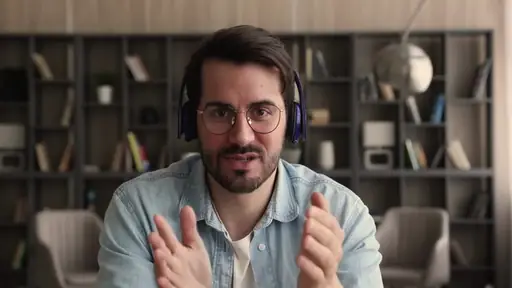
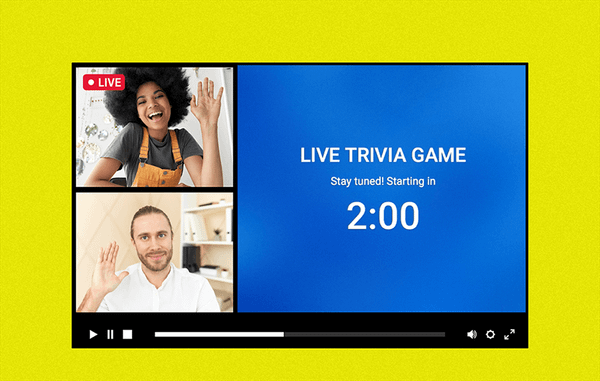
Your guest opens the link in a browser on a phone or a computer, types their name, and allows their camera and microphone. They wait off air until you put them on the stage, and they see the live chat while they wait.
See guests and cameras →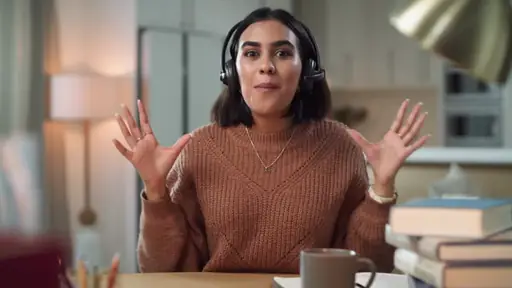
-
No account, nothing to install
Your guest needs no LiveReacting account and no app. The link is the whole invitation.
-
On the stage when you say so
A guest waits off air until you add them to the scene. Mute them, hide their camera, or remove them, one click each.
-
Your guests see the chat too
Viewers' comments show in the guest's room, so they can answer a question as it comes in.
More than one camera, and your screen.
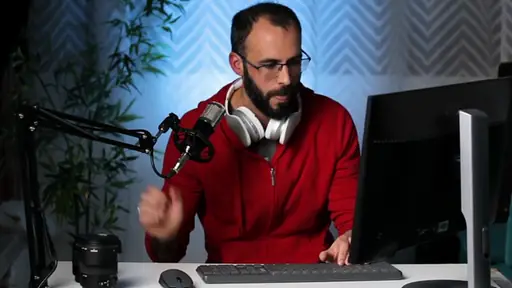
Each camera and each microphone is its own source. Add several of each, place them on the stage, and switch between them with scenes. Share a whole screen, one window or one browser tab beside them.
Read the camera guide →-
A camera with a name and a frame
Pick each camera from the list your browser shows. Give it a name, a border and rounded corners on the stage.
-
A screen, a window or one tab
Choose what to share when you add it. A browser tab can come with its sound, so a video on your screen plays with audio.
-
A microphone, or several
Add each microphone as its own source and set its volume. Echo cancellation and noise suppression are on by default for you and your guests.
One scene for each part of the show.
An opening, the talk, a clip, a closing. Switch between them with one click while you are live, or let a countdown or a video move to the next scene on its own when it ends.
Read the auto layouts guide →

-
The stage lays itself out
Turn on automatic layouts and pick a shape for two to five people. When someone joins or leaves, the stage rearranges itself to fit. With more people, place them yourself.
-
Or place everything yourself
Drag any source where you want it and resize it, with guides that snap it into line.
-
Copy a scene to start the next
Duplicate a scene, change one thing, and the rest of the show is already laid out.
Your branding and your clips, on the live picture.
A logo, a name banner, a music track or a recorded video: each is a source you place anywhere on the stage, on its own or beside your camera, and move, resize or replace while you are live. A playlist can carry a whole segment and hand over to the next scene when it ends.
Read the logo guide →
-
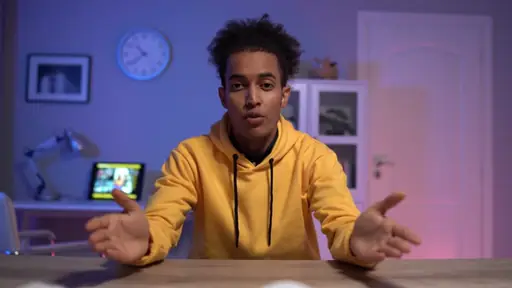
A name banner made from text
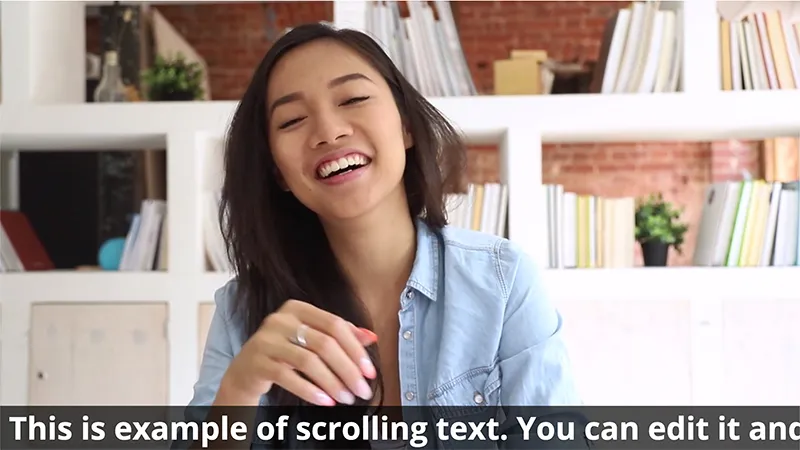
Add a title, a guest's name or a scrolling line as text, still or animated, in the font and size you choose.
-
A clip inside the live show
Play a recorded video in a scene, on its own or beside your camera, and let a playlist switch to the next scene when it ends.
-
Music under the show
Upload a track, set its volume, and start or stop it from the studio.
The live chat, a countdown or a game, on the same stage.
You place, resize and switch each one with scenes, the same way as a camera.
-
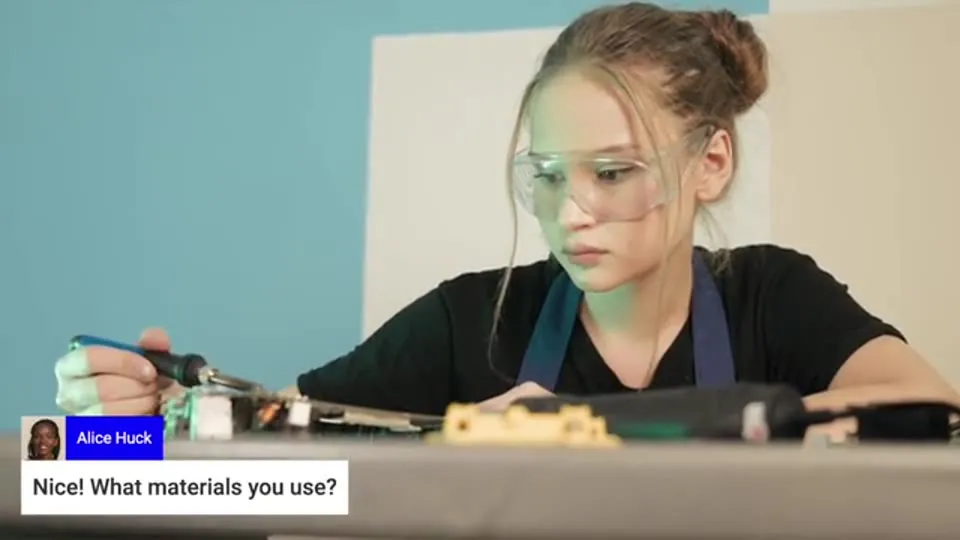
Viewers' comments on screen
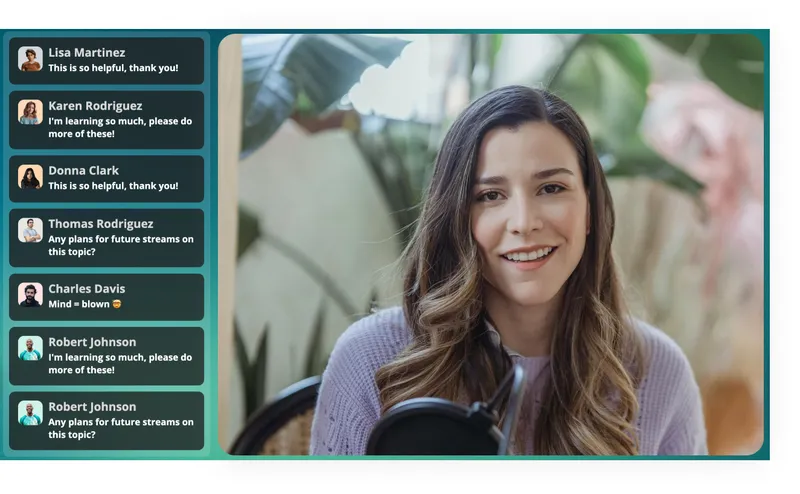
Show viewers' comments on the picture as they come in, in the place, the theme and the size you choose.
Read the chat overlay guide -
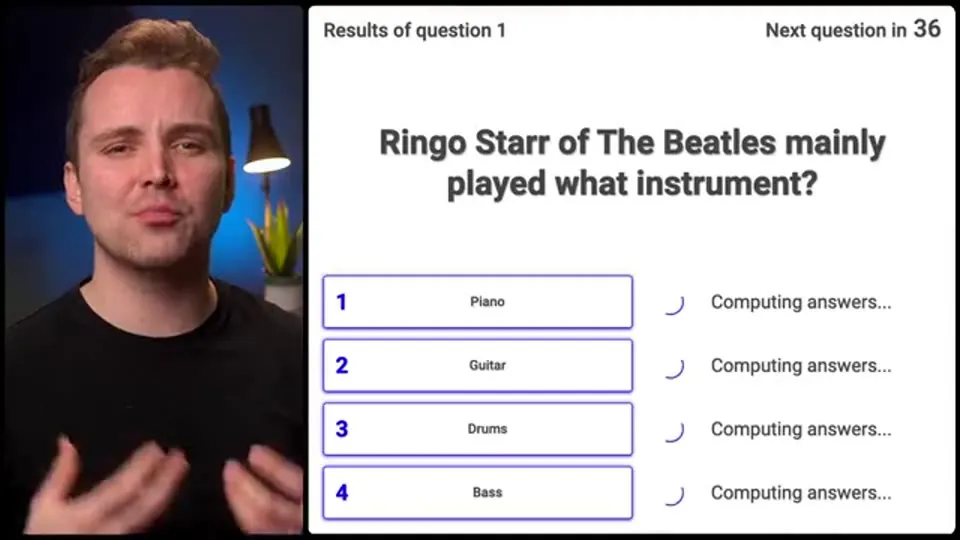
A trivia game or a poll with your guests
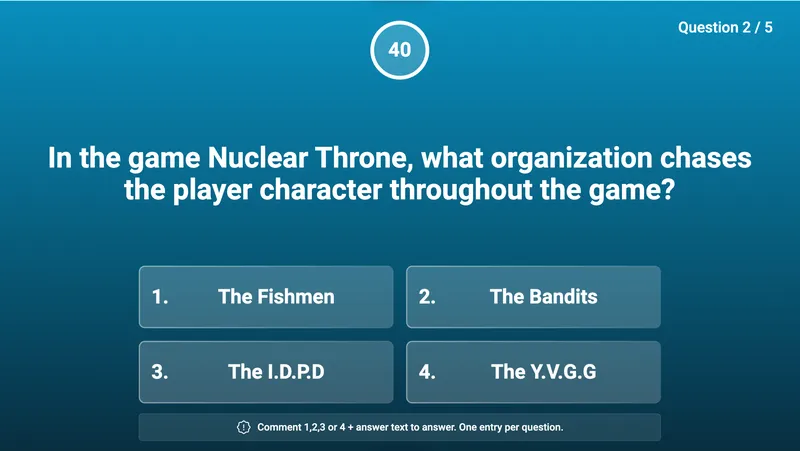
Put a trivia game, a poll or a giveaway on the scene beside your guests. Viewers take part by typing a comment in the live chat.
See interactive live streaming -
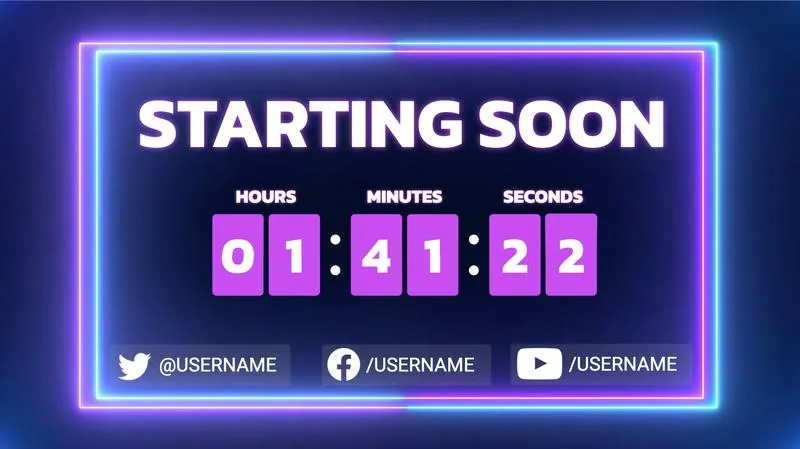
A starting-soon countdown
Open with a countdown scene, and let it switch to your camera on its own when it ends.
See countdowns -

Music with a visualizer
Play a track or a whole audio playlist under the show, with a visualizer that moves to the sound.
Help Center guide -
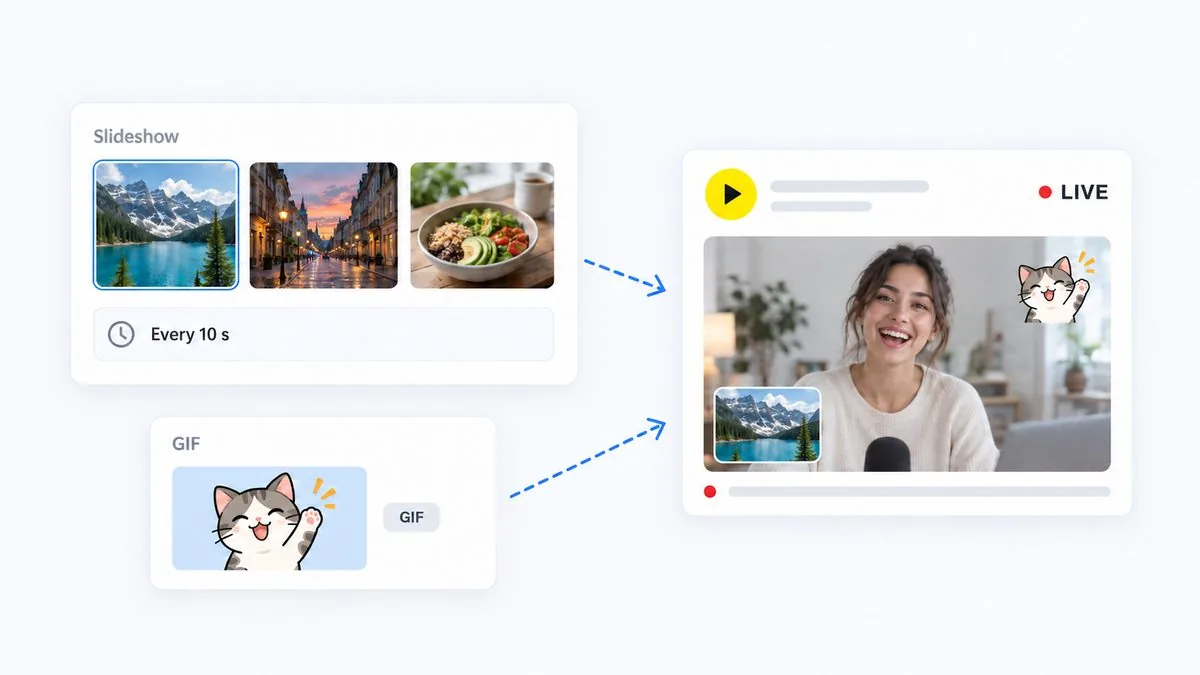
A slideshow or a GIF
Run a set of images as a slideshow that turns on its own timer, or drop a GIF on the picture, on its own or over your camera.
Help Center guide -
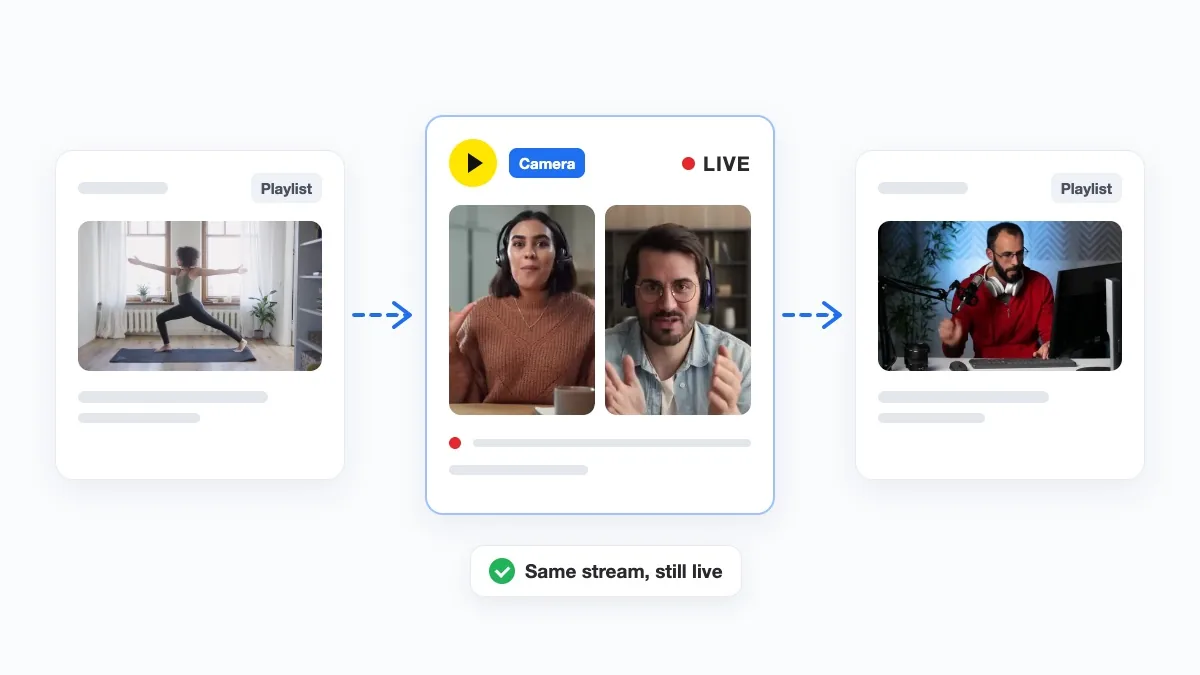
Cut to your camera mid-playlist
Run a playlist, cut to your camera and a guest in the middle of it, then back to the videos. The stream stays on air. Leave the playlist running, and it is a 24/7 stream from our servers.
See 24/7 live streaming
Your tab sends the camera, our servers do the rest.
A camera, a microphone or a shared screen comes from your browser, so keep the tab open and your connection steady while you are on air. A recorded clip, a playlist or a 24/7 stream runs from our servers and needs neither.
See multistreaming →-
Every channel you connected, at once
Connect YouTube, Facebook, Twitch or Instagram by signing in, or any other platform by pasting its stream key. One show goes out to all of them; the pricing page lists how many each plan includes.
-
Change the show while it is live
Move a source, swap a clip, switch a scene or put a guest on the stage while you are on air. Viewers see the new picture; the stream does not stop.
-
Landscape, portrait or square
Pick the shape of the stream in the resolution setting: landscape, portrait for Shorts, Reels and TikTok, or square. Every source rearranges to fit.
3M+ live streams, 39K+ happy customers.
What it is like to produce a live show.

“This software checks all the boxes of exactly what I need for my YouTube livestreaming.
The UI is fantastic and very easy to use. It seems other platforms all have one or a few features missing that ruin it, but LiveReacting has had everything I need.”
 Jesse E.YouTube content creator
“The most amazing thing about this software is that you can update your stream on the fly. You can change branding, add pre-recorded videos and all from the cloud.
And then of course all the interactive tools like the countdowns, polls, trivia games are just so cool.”
 Geoffrey E.Chief Content Officer at a marketing agency
“Amazing! Live Reacting gives us the ability to post to both YouTube and Facebook quickly without having to upload to both separately.”
 Jason J.A/V Ministry Director at a religious institution
Picked from 3,783,009 live streams.
Live streams our customers ran.
Open a ready-made template and change it.
A ready-made stream project for one occasion. Open it, keep it as it is or change what you need, and go live without building anything from scratch.
-
 Open template
A multi-scene show: an opening, the talk with guests, and a closing, ready to switch.
Live show
Open template
A multi-scene show: an opening, the talk with guests, and a closing, ready to switch.
Live show
-
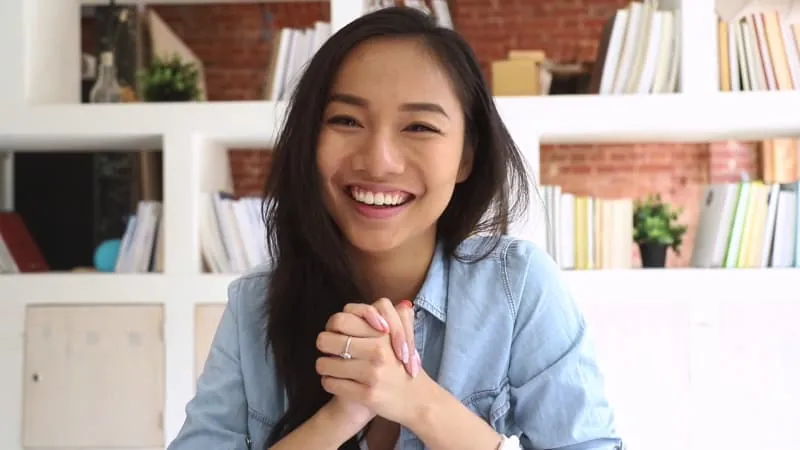 Open template
Your camera and microphone on the stage, and nothing else to set up.
Camera + mic
Open template
Your camera and microphone on the stage, and nothing else to set up.
Camera + mic
-
 Open template
Your camera with the viewers' comments shown over the picture.
Camera + comments overlay
Open template
Your camera with the viewers' comments shown over the picture.
Camera + comments overlay
-
Open template
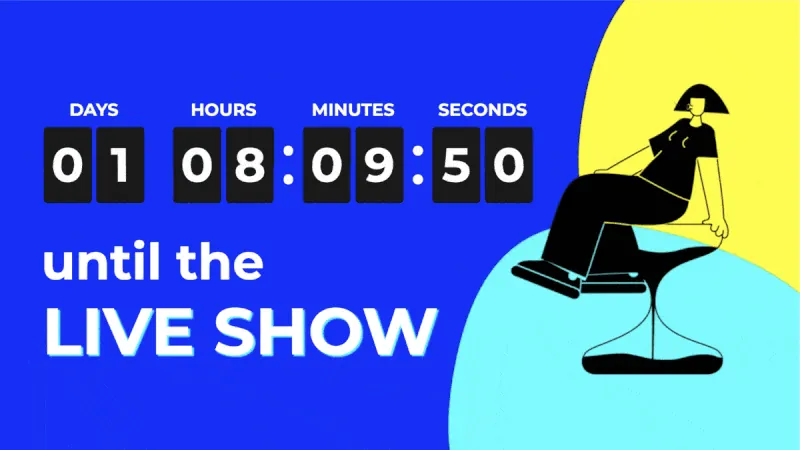
A countdown scene that switches to your camera when it ends.
Countdown + web camera
-
 Open template
A video with a scrolling line of text under it, for a ticker or a notice.
Video with scrolling text
Open template
A video with a scrolling line of text under it, for a ticker or a notice.
Video with scrolling text
-
 Open template
A trivia game beside your camera; viewers answer in the live chat.
Simple trivia game
Open template
A trivia game beside your camera; viewers answer in the live chat.
Simple trivia game
What people produce in the browser, and what they put on the stage.
A show is anything with a camera, a guest or a screen in it.
-
An interview
One guest from a link beside your camera, and the stage picks a side-by-side layout for you.
See guests and cameras -
A panel
Four guests on one stage, a name banner under each, and a scene for the questions at the end.
-
A lesson or a webinar
Your slides as a shared screen, your camera in the corner, and a countdown scene before you start.
Read the screen guide -
A product launch
A recorded clip that switches to your camera when it ends, and a poll over the picture.
See polls -
A Sunday service
Two cameras switched by scenes, the words on screen as text, and the comments shown to the room.
See church live streaming -
A show inside OBS or vMix
Already produce your show elsewhere? Add LiveReacting to it as a browser source for the games and the comments.
See interactive live streaming
How other people set one up.
-
How to add a guest to your live stream
-
How to go live as a guest
-
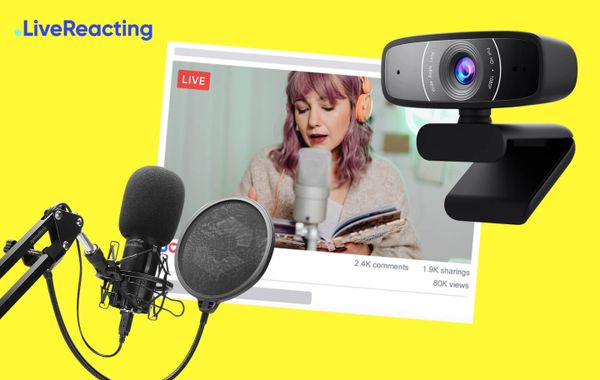
Add a camera and external audio to a live stream
-
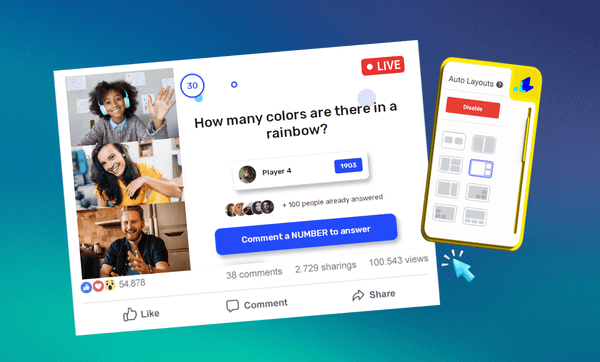
Auto layouts for a live stream
-
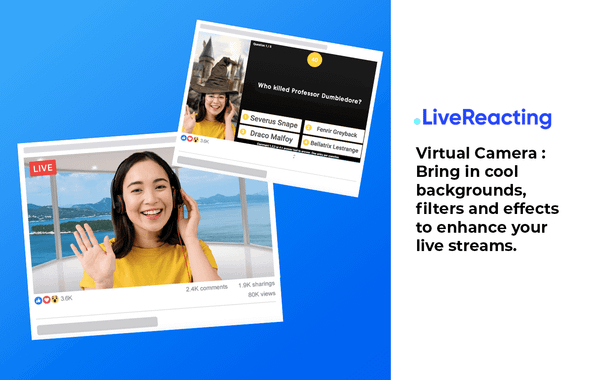
How to use a virtual camera in a live stream
-
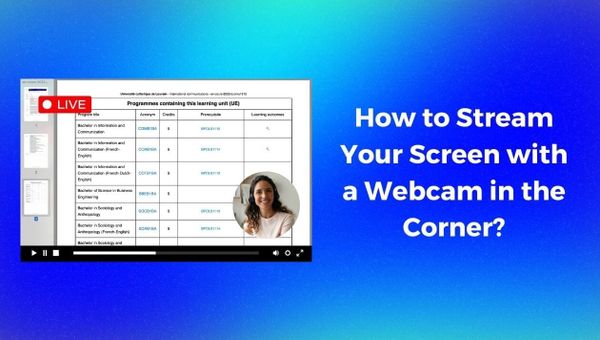
Live stream your screen with a webcam in the corner
-
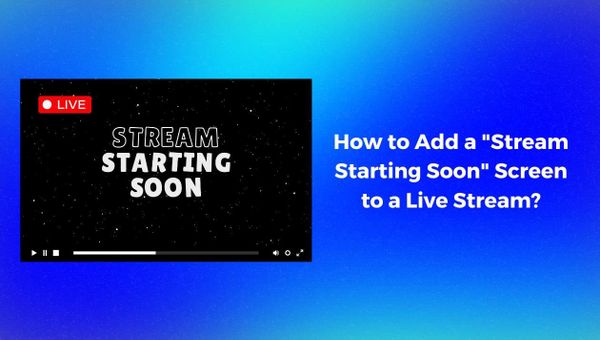
Add a starting soon screen to a live stream
-
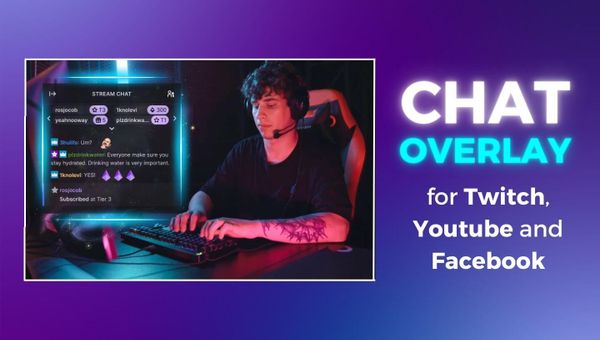
Add a YouTube or Twitch chat overlay to a stream
Frequently asked questions.
Do my guests need an account or an app?
No. They open the link in a browser on a phone or a computer, type a name, and allow their camera and microphone. They are then in the room, off air, until you put them on the stage.
Does my computer have to stay on?
While a camera, a microphone or a shared screen is in the show, yes: they stream from your browser, so keep the tab open. A recorded clip, a playlist or a 24/7 stream runs from our servers and does not need it.
How many guests can join?
Up to 12 guests on the stage at once, depending on your plan. The pricing page lists the number for each plan.
Can guests join from a phone?
Yes. The link opens in the phone's browser, the guest types a name and allows the camera, and they are in the room.
Is the show recorded?
LiveReacting does not record it. YouTube keeps a replay of a live stream shorter than 12 hours, read from YouTube's help page in September 2026; other platforms have their own replay settings, so check them before you go live.
Can I stream to YouTube and Facebook at the same time?
Yes, and to Twitch, Instagram, TikTok, LinkedIn, Kick, X and any platform that takes a stream key. The pricing page lists how many at once each plan includes. See multistreaming.
Can I share my screen?
Yes, a whole screen, one window or one browser tab, on its own or beside your camera. A guest cannot share their screen.
What happens to the layout when a guest joins?
With automatic layouts on, the stage rearranges itself to fit them. With it off, the guest appears where you placed their source.
Can I run a trivia game or a poll with my guests on screen?
Yes. Every game is a source you place on the scene beside them, and viewers take part by typing a comment in the live chat. See interactive live streaming.
Can I use my own camera software or a virtual camera?
Yes. Anything your browser lists as a camera can go on the stage, including a virtual camera from other software.
Can I run a show from clips alone, with no camera?
Yes. A scene of recorded videos or a playlist streams from our servers, so your computer can be off. Add a camera later and it comes from your browser.
How do you live stream with guests from a browser?
- To live stream with guests from a browser, sign up to LiveReacting and create a project from a Live show template, then connect the YouTube, Facebook, Twitch or other channel you stream to. Copy the invite link from the project and send it to your guests; they open it in a browser, type a name and wait off air. Put them on the stage, add your camera, your screen or a clip, and go live.
-
- Sign up, open a Live show template, and connect the channel you stream to.
- Copy the invite link and send it to your guests; they open it in a browser and wait off air.
- Put them on the stage, add your camera or your screen, and go live.
-
 Written and reviewed by the LiveReacting Streaming Team. Powering live streams since 2016. See customer results.
Last updated: September 2026
Written and reviewed by the LiveReacting Streaming Team. Powering live streams since 2016. See customer results.
Last updated: September 2026
Three things to have ready
- A free LiveReacting account Sign up with your email address. What each plan includes is on the pricing page. See pricing.
- A computer with a camera and a microphone The studio runs in the browser, and your camera streams from it. Guests need only a phone or a computer with a browser.
- A channel to stream to A YouTube, Facebook, Twitch or Instagram channel connected by signing in, or any other platform by its stream key.
Start your first live show in the browser.
Open a Live show template, send your guests a link, and go live. Your cameras, your screen, your branding and your guests on one stage, and nothing to install on either side.
- No credit card
- 4.8 from 633 reviews
Want the numbers first? See pricing