Connect LiveReacting to your AI.
Your AI then builds, schedules and starts your live streams for you.
-
ChatGPT
The LiveReacting plugin opens in ChatGPT. Click Install plugin, then sign in to your LiveReacting account.
Open in ChatGPT -
Claude
Copy this URL. In Claude, open Customize, Connectors, Add custom connector, paste it, then sign in to your LiveReacting account.
https://mcp.livereacting.com/mcp -
Claude Code, Codex, Cursor or any other AI agent
Copy the setup message and paste it into your agent. The agent sets up the connection for you.
Included in every paid plan. Full setup guide
Invite Guests to Your Live Stream.
Invite a guest to your live stream with one link. They open it in a browser on a phone or a computer, type their name, and allow their camera and microphone. Your guest needs no account and installs nothing. They wait off air until you put them on the stage.
- Free to start
- 4.8 from 633 reviews 4.8 is the average of 633 customer reviews. They come from public review sites and from our own review system.




- 2010Streams broadcasting through LiveReacting right now. Value updated every hour from the actual database. Streams live right now
- 3M+Every stream published through LiveReacting since launch. Counted in the LiveReacting database on 11 September 2026. Streams published
- 39K+ Customers
- 99.998% Uptime






One link, a name, and a camera.
Every project has its own invite link. Copy it from your project and send it however you like. Your guest opens it in a browser, types a display name, and allows their camera and microphone.
See Live Studio →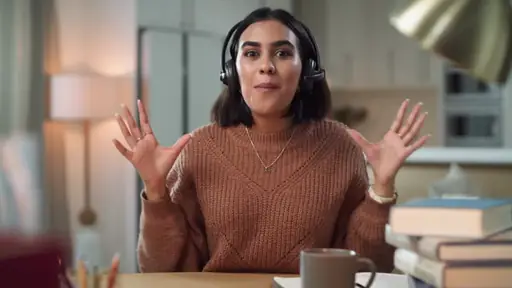
-
One link for the whole project
The link belongs to the project, not to a person, so the same one works for every guest you invite. Send it by email, by chat, or in a calendar invite.
-
No sign-up, no download
The join page asks for a display name and permission for the camera and the microphone. There is no password to pick and no file to download.
-
They wait off air
A guest is in the room but not in the show. They see their own camera and the live comments while they wait for you to put them on the stage.
You decide who is on air, and when.
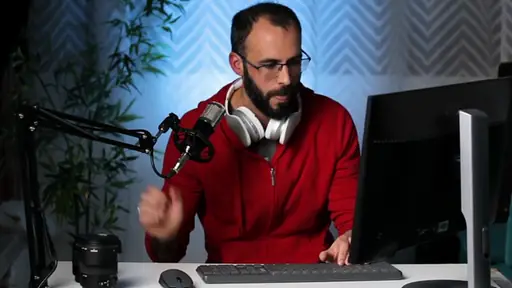
Every guest in the room has a card on your side of the studio. Put them on the stage when it is their turn, take them off when it is not, and set what your viewers hear from each of them while they are on.
Read the guest guide →

-
On the stage, or off it
Add a guest to the scene with one button and take them off with the same one. They stay in the room either way, so you can bring them back later in the show.
-
Their volume, their microphone, their camera
Slide a guest's volume, mute them, or hide their camera without taking them out of the room. Remove a guest and they leave it.
-
The chat reaches the guest room
Comments from the platforms you signed in to arrive in the guest's room as well as yours, so a guest can answer a viewer's question without you relaying it.
What happens on your guest's side.
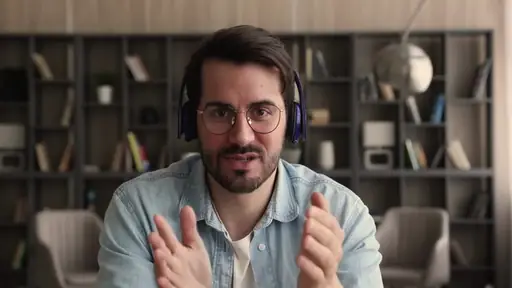
Your guest taps the link on a phone or opens it on a computer. The browser asks for the camera and the microphone, they pick which ones to use, and they check their own picture before anyone sees it.
Read the guest's guide →-
A phone is enough
The join page is built for a small screen as well as a large one, so a guest can come on from wherever they are.
-
They see themselves first
Your guest sees their own camera and microphone before they press Join, so they can fix a bad angle off air.
-
Echo and background noise
Echo cancellation and noise suppression are switched on before a guest joins, and the same page lets them turn either one off.
3M+ live streams, 39K+ happy customers.
What they say about LiveReacting.

“The different live stream formats LiveReacting provides have engaged our community with practical, intuitive, and fun trivia games & giveaways.
We plan to use these tools to expand our content creation even more in the future.”
 Luisa & MatLive Content Team at Hobbii
“LiveReacting is an amazing tool for interactive games on your live stream.
You can create all sorts of live games to play with your audience. It is really easy to set up and use.”
 Michael Feyrer Jr.Live Streaming Expert & YouTube Entrepreneur
“The most amazing thing about this software is that you can update your stream on the fly. You can change branding, add pre-recorded videos and all from the cloud.
And then of course all the interactive tools like the countdowns, polls, trivia games are just so cool.”
 Geoffrey E.Chief Content Officer at a marketing agency
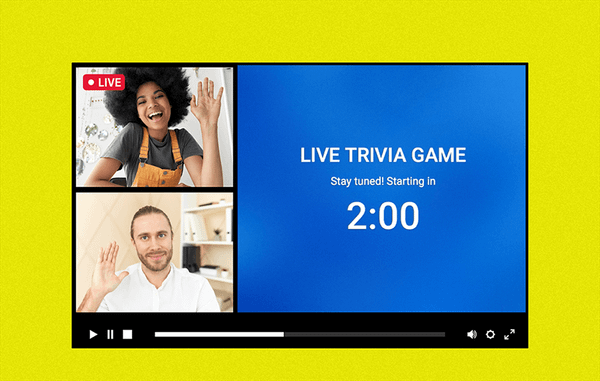
How to invite a guest and put them on air.
Frequently asked questions.
Do my guests need an account or an app?
No. Your guest opens the link in their browser, types a display name, and allows the camera and the microphone. There is nothing to sign up for and nothing to download.
How many guests can I invite?
Up to 12 guests on the stage at once. How many your own plan gives you is on the pricing page.
Can a guest join from a phone?
Yes. The join page is built for a small screen too, so your guest taps the link, types a name, allows the camera, and is in the room.
Can I control my guests' audio and video?
Yes. Set each guest's volume, mute them, hide their camera, or remove them from the room. One button puts a guest on the stage and takes them off it again.
What does a guest see while they wait?
Their own camera, and the live comments from the platforms you signed in to. They are in the room and off air until you add them to the scene.
Can a guest share their screen?
No. You share a whole screen, one window or one browser tab from your own studio, and your guests cannot share theirs.
What happens to the stage when a guest joins?
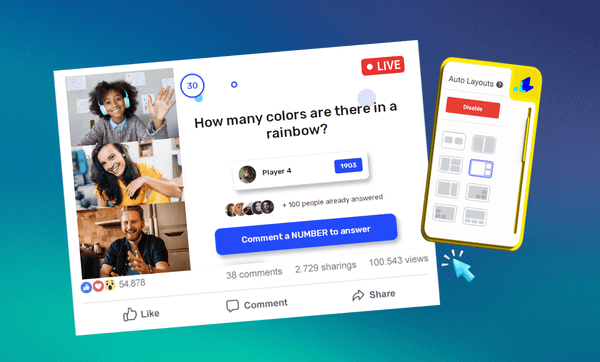
Turn automatic layouts on and the stage picks a new shape each time someone joins or leaves. Turn it off and every guest stays where you put them.
Does the studio tab have to stay open?
Yes, while a camera or a microphone is in the show. Your guests' pictures and yours reach the stream through your tab, so closing it takes everyone off the stage.
What platforms can I stream to with guests?
YouTube, Facebook, Twitch and Instagram by signing in, and TikTok, LinkedIn, Kick, X or any other platform that takes a stream key. The pricing page lists how many at once each plan includes. See multistreaming.
Do my guests need a fast connection?
A guest's camera and microphone come from their own browser, so their connection carries their picture. A recorded clip or a playlist in the same show runs from our servers and does not depend on it.
How do you invite a guest to a live stream?
- To invite a guest to a live stream, sign up to LiveReacting and create a project from a Live show template, then connect the YouTube, Facebook, Twitch or other channel you stream to. Copy the project's invite link and send it to your guest; they open it in a browser, type a display name and allow their camera and microphone. Add them to the scene when it is their turn, and go live.
-
- Create a project from a Live show template and connect the channel you stream to.
- Copy the project's invite link and send it; your guest opens it and waits off air.
- Add them to the scene when it is their turn, and go live.
-
 Written and reviewed by the LiveReacting Streaming Team. Powering live streams since 2016. See customer results.
Last updated: September 2026
Written and reviewed by the LiveReacting Streaming Team. Powering live streams since 2016. See customer results.
Last updated: September 2026
What you and your guest need
- One LiveReacting account, yours You create the project and send the link, so the account is yours alone. What each plan includes is on the pricing page. See pricing.
- A browser on your guest's side A phone or a computer with a camera and a microphone. Your guest opens the link and nothing else.
- A channel to stream to Sign in to your YouTube, Facebook, Twitch or Instagram channel from the project, or paste the stream key of any other platform.
Invite your first guest.
Create a project, copy its invite link, and send it. Your guest opens it in a browser and waits off air until you put them on the stage.
- No credit card
- 4.8 from 633 reviews
Want the numbers first? See pricing