Run 24/7 and pre-recorded live streams from ChatGPT.
Ask ChatGPT to loop your videos as a 24/7 live stream, or to schedule a recorded video to go live at the time you choose. ChatGPT builds the stream in your LiveReacting account. Our servers send it to YouTube, Facebook, Twitch or any other platform, so your computer can be off.
- Included in every paid plan
- Works right in your ChatGPT chat


Ask for a stream in your own words.
Type @LiveReacting, then say which videos, which channel and what time. ChatGPT works out the steps and reports back when they are done.
-
Loop the videos from my LiveReacting library as a 24/7 live stream on my YouTube channel

ChatGPT finds the videos in your library and checks that each one can be streamed. Then it builds a playlist that loops and starts the stream on your YouTube channel.
-
Live stream my recorded video from Google Drive on my Facebook page today at 8 PM
ChatGPT imports the video from your Google Drive link and builds a stream that plays it once. Then it schedules the stream for 8 PM on your Facebook page.
-
Show the status of my running live streams
ChatGPT lists your streams that are live and tells you how each one is doing on every channel.
Build, schedule and check your streams in a chat.
ChatGPT works with what is in your LiveReacting account: the videos in your library and the channels you connected.
-
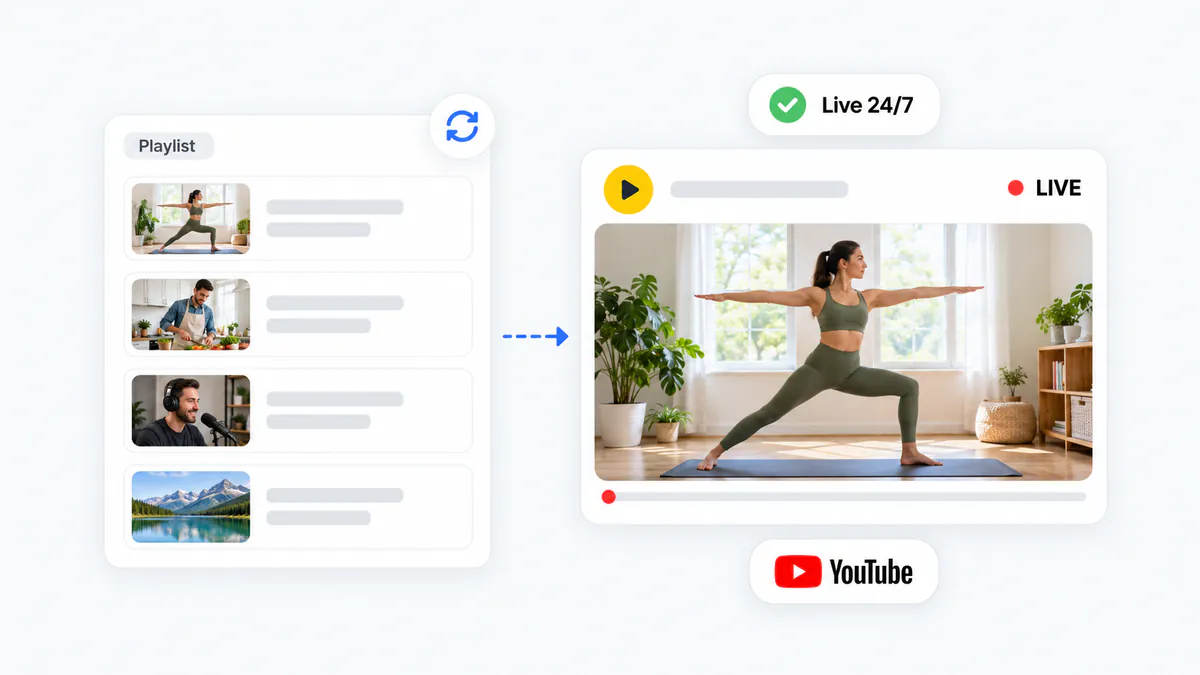
Loop videos as a 24/7 live stream
Name the videos and the channel. ChatGPT puts them in a playlist in the order you want, and it plays on a loop until you stop the stream.
Explore 24/7 live streaming → -
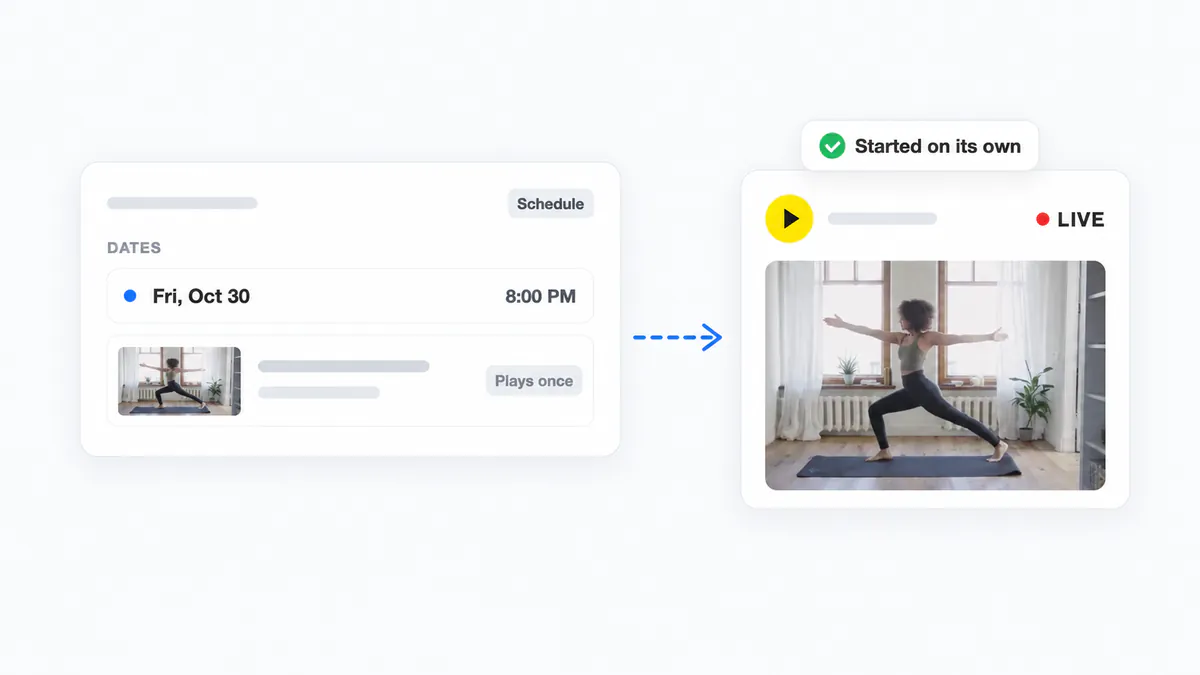
Schedule a recorded video
Tell ChatGPT the date and time it should start, up to 28 days ahead. LiveReacting starts the stream at that time and ends it when the video ends.
Explore pre-recorded streaming → -
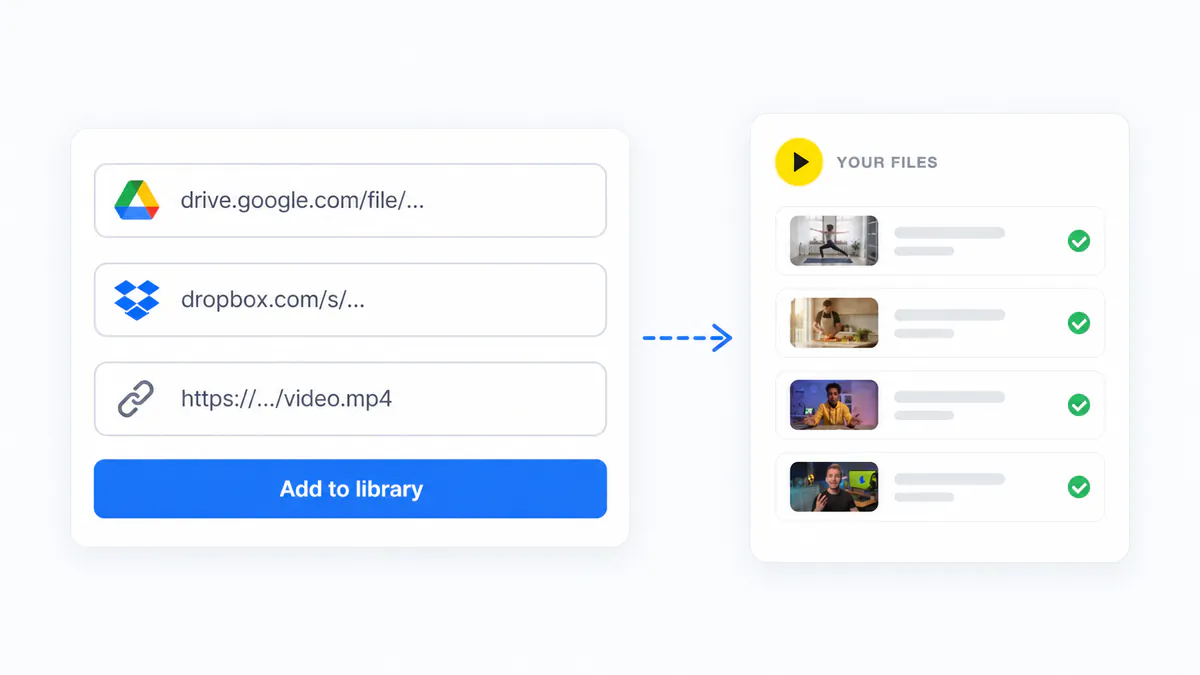
Add videos from a link
Give ChatGPT a Google Drive, Dropbox or public link to the video file, or a video from your own YouTube channel. It adds the video to your library.
-
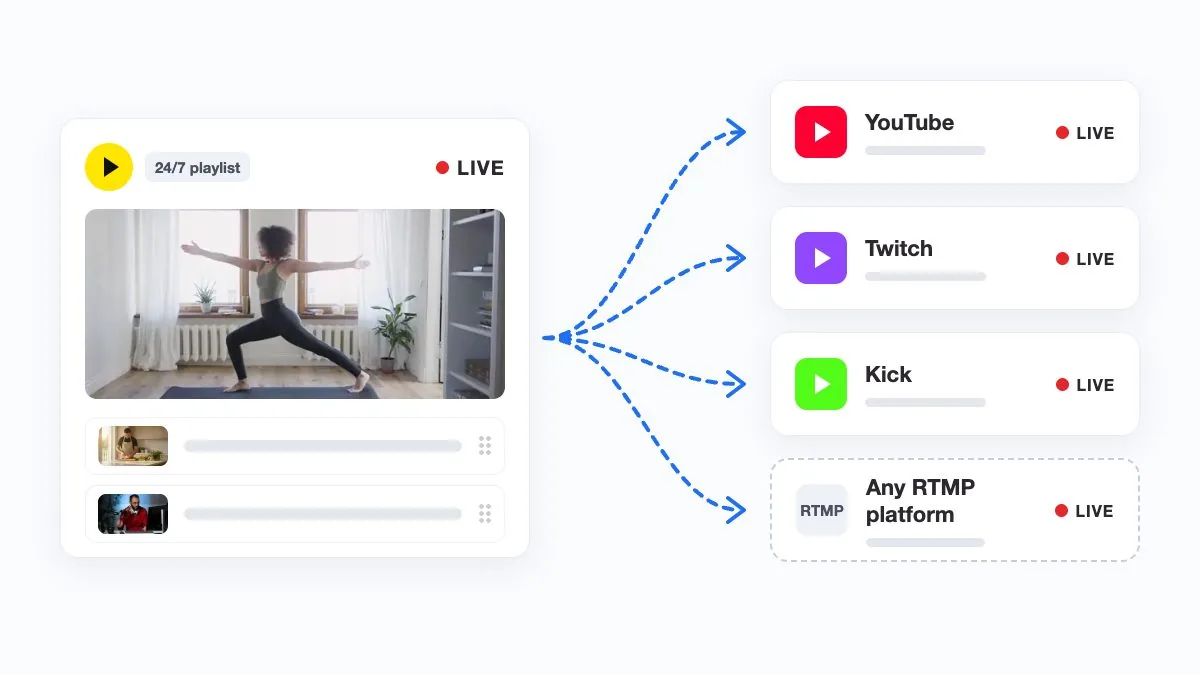
Multistream to several platforms
Pick several channels for one stream. LiveReacting sends it to YouTube, Facebook, Twitch, LinkedIn, X or any other platform you connected, all at the same time.
Explore multistreaming → -
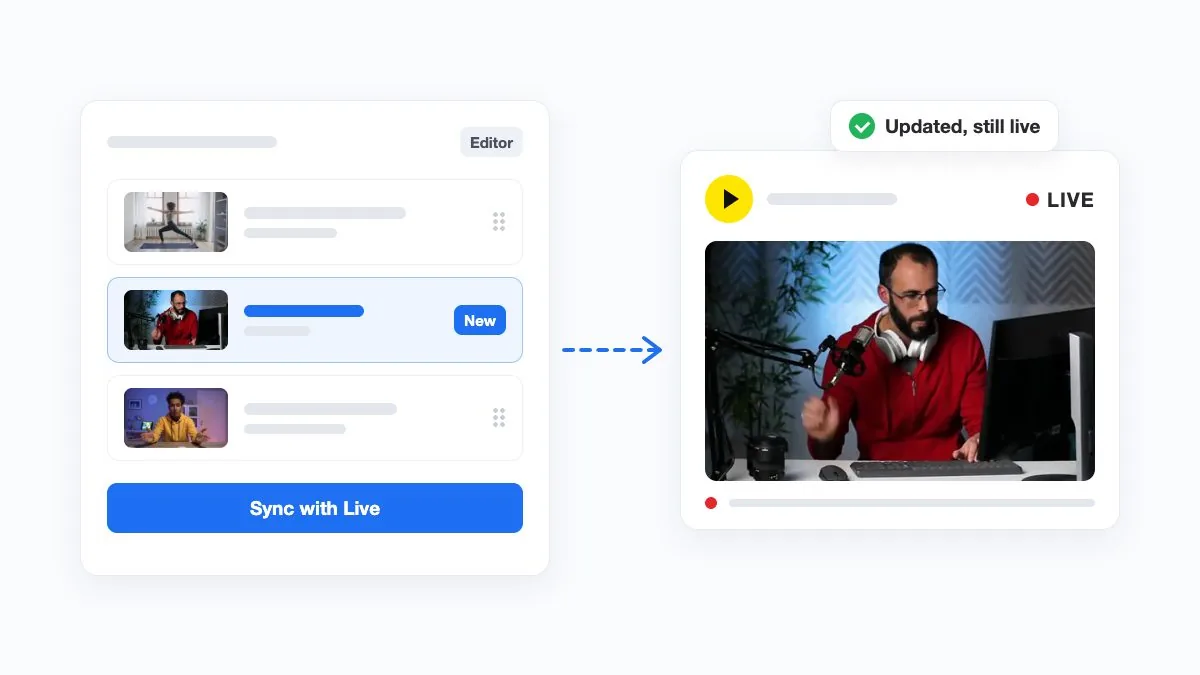
Change a stream while it is live
Add a video to the playlist or switch to another scene from the chat. Your viewers see the change, and the stream keeps running.
-
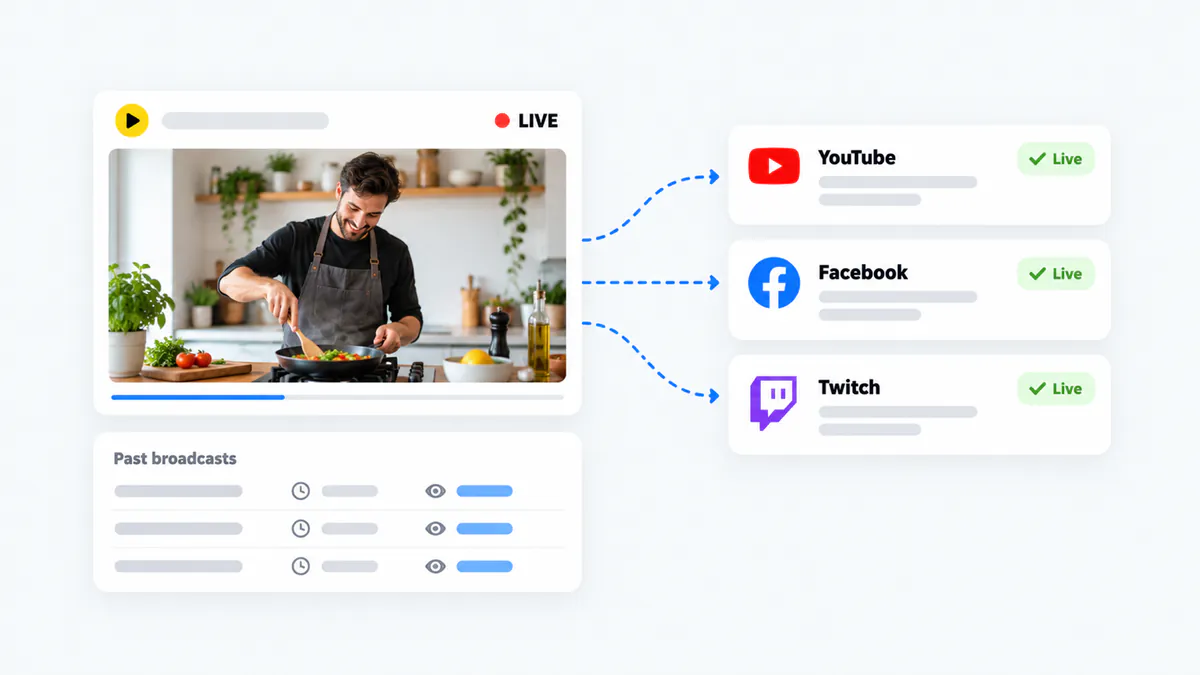
Check how a stream is doing
Ask whether a stream is live and how it is doing on each channel. For past broadcasts, ChatGPT tells you how long each one ran and its peak viewers.
What it cannot do
- Build overlays, polls or trivia. Build them in the LiveReacting Studio, the stream editor in your browser. ChatGPT can still start, schedule, stop and check a stream that has them.
- Import a YouTube playlist or channel. Give ChatGPT one video link at a time, or import the whole playlist or channel in the Studio.
- Run a 24/7 stream on Facebook alone. Facebook ends a live stream after 8 hours. Add YouTube or another platform to the same stream, and it keeps running there.
Questions
How do I connect LiveReacting to ChatGPT?
Choose Open in ChatGPT on this page, and ChatGPT opens the LiveReacting plugin page. Click Install plugin and sign in to your LiveReacting account when ChatGPT asks. Then, in any chat, type @LiveReacting and ask for the stream you want.
Which plan do I need?
Every paid plan includes the plugin. On the Free plan, ChatGPT can connect, but each request stops with a message that your account needs a paid plan. The pricing page compares the plans.
Does ChatGPT get my YouTube or Facebook login?
No. You connect YouTube, Facebook, Twitch and your other channels in your LiveReacting account, and ChatGPT picks from the ones you connected. ChatGPT gets access to your LiveReacting account and never sees your platform logins.
Can I stream a video that is on my computer?
Yes. Add the video to your library in the LiveReacting Studio, then ask ChatGPT to use it. In the chat, ChatGPT takes a new video from a Google Drive, Dropbox or public link, not from a file you attach. An AI coding agent such as Claude Code or Codex can add a file straight from your computer, through the LiveReacting MCP server.
Does the plugin use the LiveReacting MCP server?
Yes. The plugin connects to the LiveReacting MCP server, the same one that Claude, Claude Code, Cursor and other AI agents use. The MCP server page has the setup for each of them.
Connect LiveReacting to ChatGPT.
-
 Open LiveReacting in ChatGPT and click Install plugin
-
 Sign in with your LiveReacting account
-
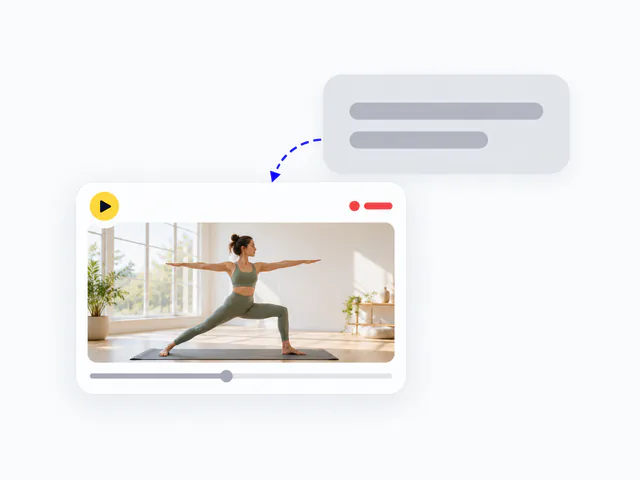 Type @LiveReacting and ask for a stream
Every paid plan includes the plugin. No LiveReacting account yet? Create a free account