Live Poll for Your Live Stream.
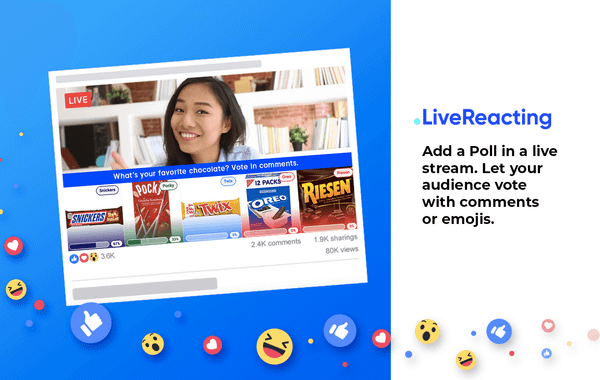
Ask your audience a question in a live poll and have the answer before the stream ends. Your viewers vote in the live chat, and the bars move as their comments arrive, on YouTube, Facebook, Twitch or Instagram. You never send your viewers to another page to vote. They do it in the same live chat where they are already watching you.
- Free to start
- 4.8 from 633 reviews 4.8 is the average of 633 customer reviews. They come from public review sites and from our own review system.




- 2145Streams broadcasting through LiveReacting right now. Value updated every hour from the actual database. Streams live right now
- 3M+Every stream published through LiveReacting since launch. Counted in the LiveReacting database on 11 September 2026. Streams published
- 39K+ Customers
- 99.998% Uptime






One comment in the chat is one vote.
You write the question and up to eight options. A viewer votes by typing one of them as a comment in the live chat.
-
No apps, no websites
Viewers vote in the comments of the live video they are already watching. On a Facebook stream they can vote with a reaction instead. Read how to set up both.
-
One vote per viewer
The first comment that names an option counts, and anything that viewer types after it is ignored. Capital letters make no difference. Read how a live poll works.
-
The count on the stream, as it changes
Every vote moves its bar while the poll is open. Show the result as a percentage or as the number of votes.
Three questions, 3,331 votes in the chat.
The Try Guys put three questions to their viewers during one YouTube live stream. LiveReacting counted the votes typed in the live chat while each question was open.
| What they asked | Votes in the live chat |
|---|---|
| What utensils should Keith use? | 625 |
| What should Keith dip his Doritos with? | 1,457 |
| What should Keith create for Doritos? | 1,249 |
| Three questions, one live stream | 3,331 |
How this was counted: our own record of that broadcast on January 31, 2024, question by question, each counted while it was open. Watch the live stream
Set the question, the format and the place on screen.
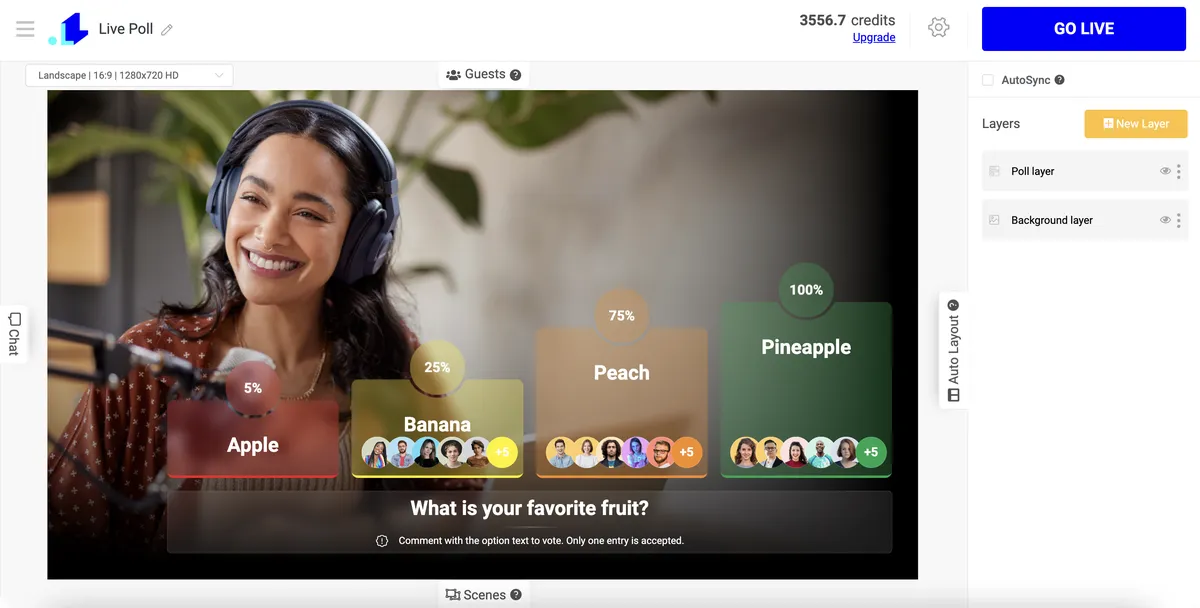
Write the question and its options, pick the format the poll takes on screen, and place it over your video at the size you want.
-
Your question and options
Two to eight options, or six in a Facebook reaction poll. Whatever you write as an option, up to 25 characters, is what a viewer types to vote for it.
-
Four formats
Bars along the video, a list of options with a bar under each, cards with a picture on each option, or Facebook reactions.
-
Where it sits on the video
Drag the poll to the size and the place you want, set the number of columns, and give each option its own color.
The format decides the settings
Not every setting is on every format. The bars format has no columns to set, and the cards format has no question line above the options.
Let it run on its own, or ask the question yourself.
Who asks the question is up to you: the poll on its own over a video, you on camera from your browser, or the software you already stream with. Our servers send the first two, and your own software sends the third.
Read the setup guide → Watch the video tutorial →


-
Without a host
Put the poll over a video you uploaded and start the stream. Nothing runs on your computer, so it can be off.
-
With you on camera
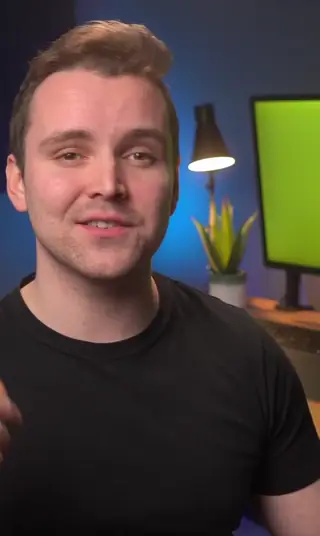
Turn on your camera and microphone in the studio, put the question to your viewers, and read the count out as the bars move.
-
Inside OBS, vMix, StreamYard or Ecamm
In OBS or any of the others, add a browser source and paste the link Plugin Mode gives the poll. It shows over your picture, and your software keeps sending the video. Read the Live Poll Plugin guide.
Features
What else a live poll can do.
-
Votes from every channel, one count
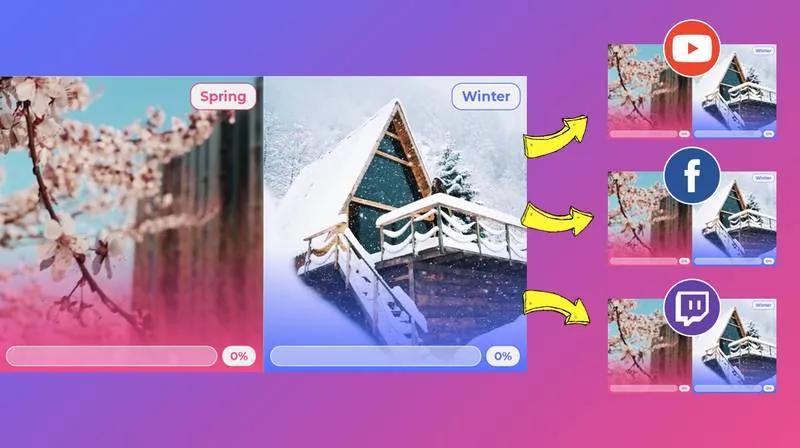
Stream to several Facebook pages, YouTube, Twitch and Instagram at once, and the votes from all of them go into one count.
-
Every option in your own color
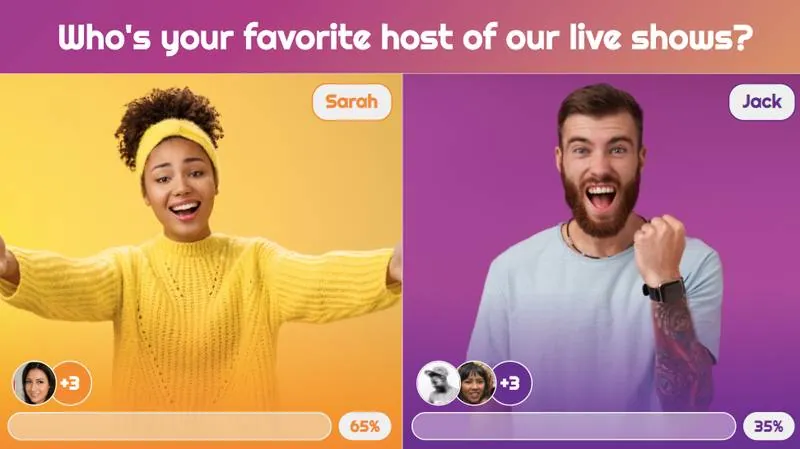
Give each option the color you want, and set how see-through the poll is over the video.
-
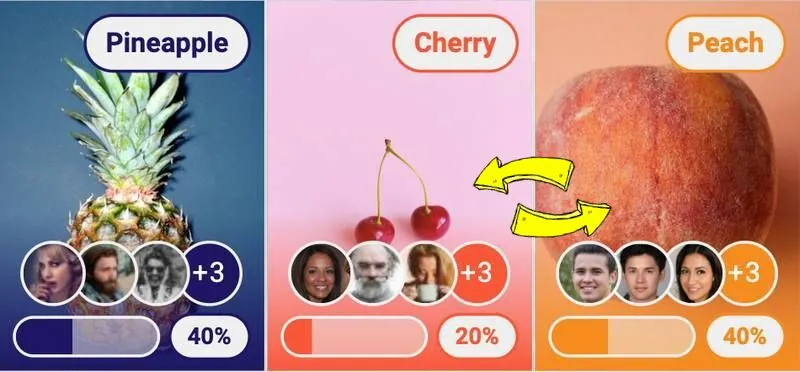
Ranking mode
The options re-sort themselves as the votes arrive, the leader first. In the cards format.
-
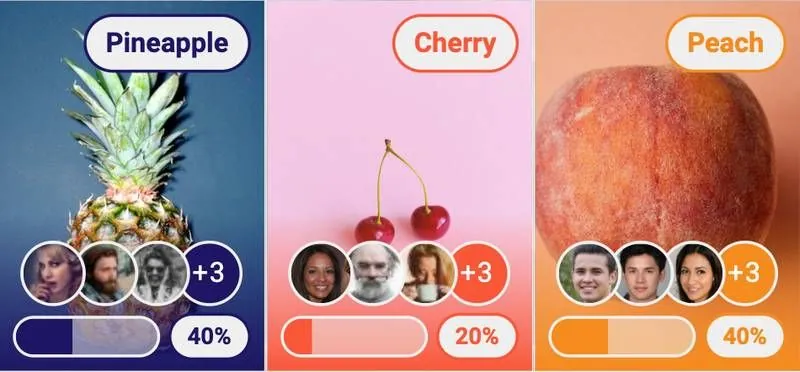
The pictures of the people who voted
The last few viewers who voted for an option appear on it. On the bars format, once that option has a quarter of the votes.
-
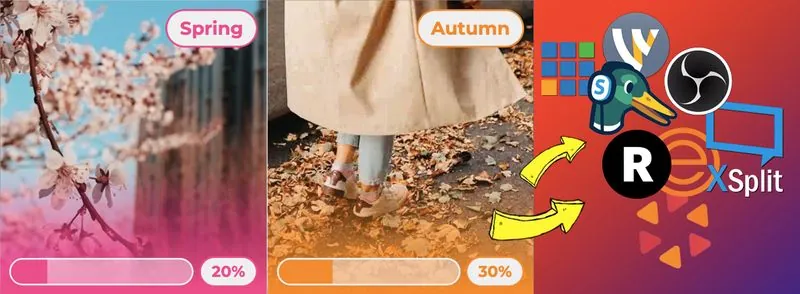
Inside your streaming software
OBS, vMix, StreamYard, Wirecast, XSplit, Ecamm, Restream or BeLive. The Help Center has a guide for each one.
-
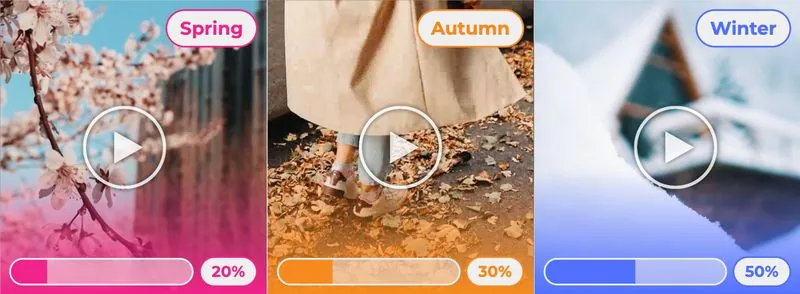
A picture or a video as an option
In the cards format, each option is a card with a picture or a video clip above the word viewers type. Read how to add them.
3M+ live streams, 39K+ happy customers.
What they say about LiveReacting.

“The most amazing thing about this software is that you can update your stream on the fly. You can change branding, add pre-recorded videos and all from the cloud.
And then of course all the interactive tools like the countdowns, polls, trivia games are just so cool.”
 Geoffrey E.Chief Content Officer at a marketing agency
“LiveReacting is an amazing tool for interactive games on your live stream.
You can create all sorts of live games to play with your audience. It is really easy to set up and use.”
 Michael Feyrer Jr.Live Streaming Expert & YouTube Entrepreneur
“The different live stream formats LiveReacting provides have engaged our community with practical, intuitive, and fun trivia games & giveaways.
We plan to use these tools to expand our content creation even more in the future.”
 Luisa & MatLive Content Team at Hobbii
“Very satisfied with LiveReacting! It has helped us in social media campaigns and have contributed to successes of it.”
 Anne Nicole S.Social Media Officer at an airline
“This software checks all the boxes of exactly what I need for my YouTube livestreaming.
The UI is fantastic and very easy to use. It seems other platforms all have one or a few features missing that ruin it, but LiveReacting has had everything I need.”
 Jesse E.YouTube content creator
Picked from 3,783,009 live streams.
Polls our customers ran.
Start from a poll template.
A ready-made poll project for one occasion. Open it, keep it as it is or change what you need, and go live without building anything from scratch.
-
 Open template
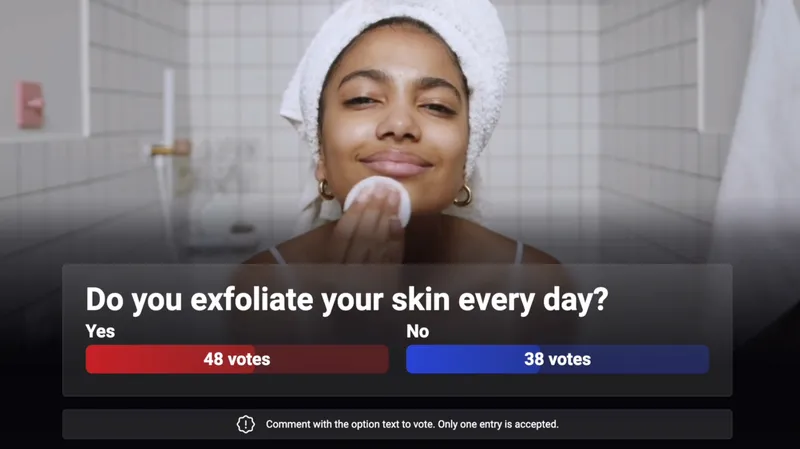
A comment poll over a video you uploaded.
Comments poll + pre-recorded
Open template
A comment poll over a video you uploaded.
Comments poll + pre-recorded
-
 Open template
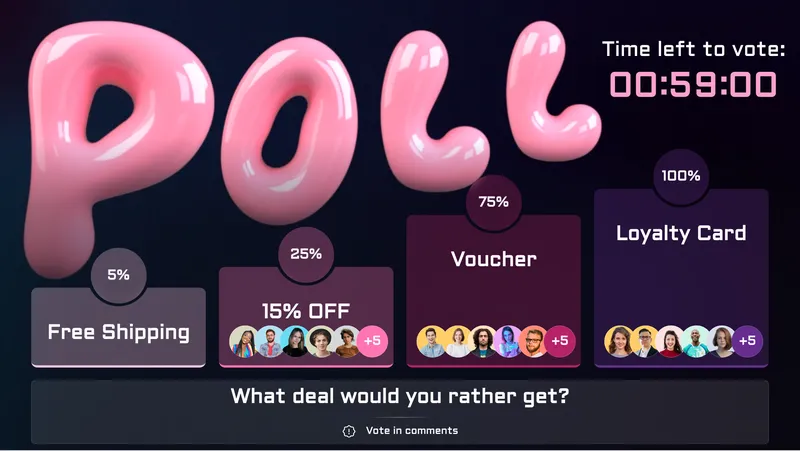
Four options with their voters, and a countdown beside them.
Bars comments poll
Open template
Four options with their voters, and a countdown beside them.
Bars comments poll
-
 Open template
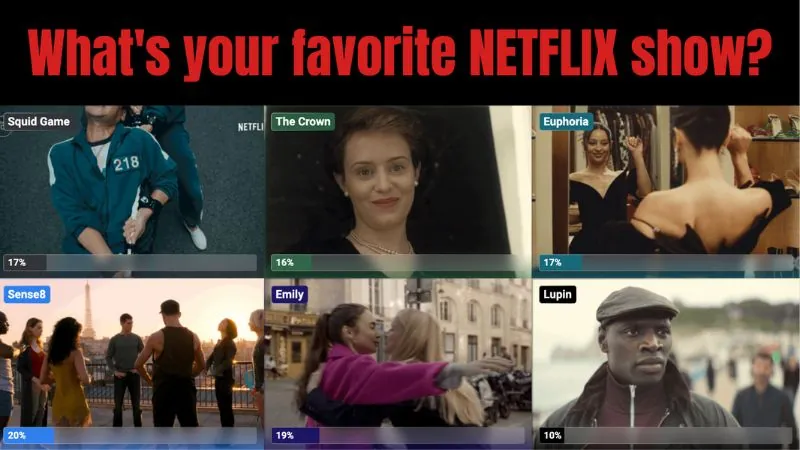
Six options as cards, each with its own picture or clip.
Comments poll (video cards)
Open template
Six options as cards, each with its own picture or clip.
Comments poll (video cards)
-
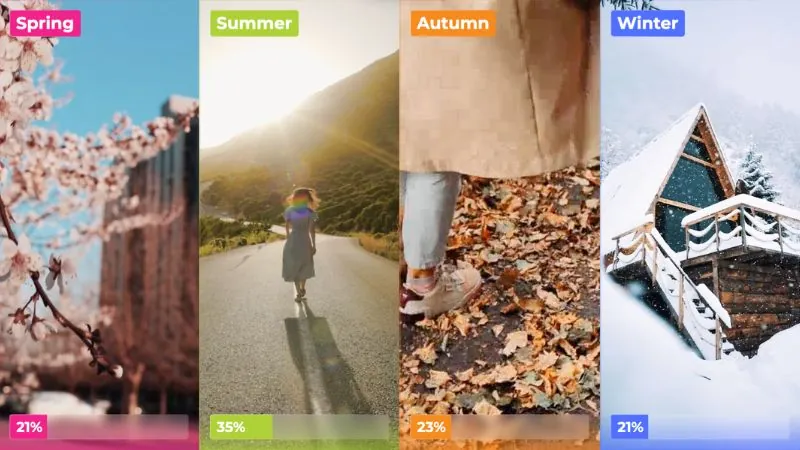 Open template
Four picture cards, side by side over the video.
Comments poll (video cards)
Open template
Four picture cards, side by side over the video.
Comments poll (video cards)
-
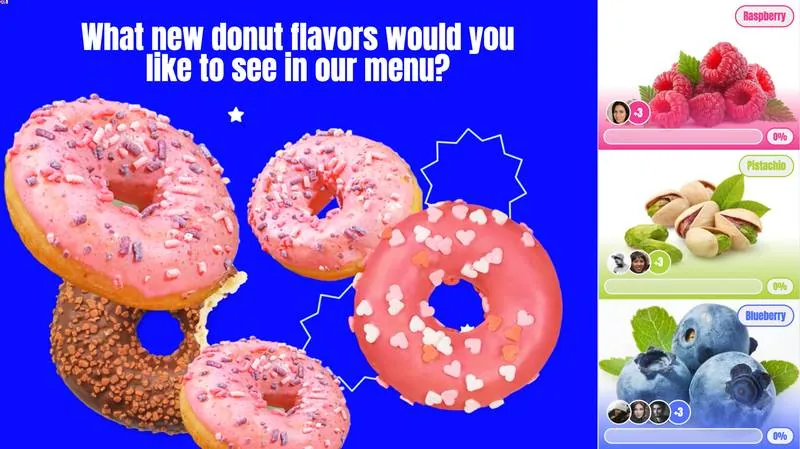 Open template
Three picture options down one side, the question on the other.
Comments poll 2
Open template
Three picture options down one side, the question on the other.
Comments poll 2
-
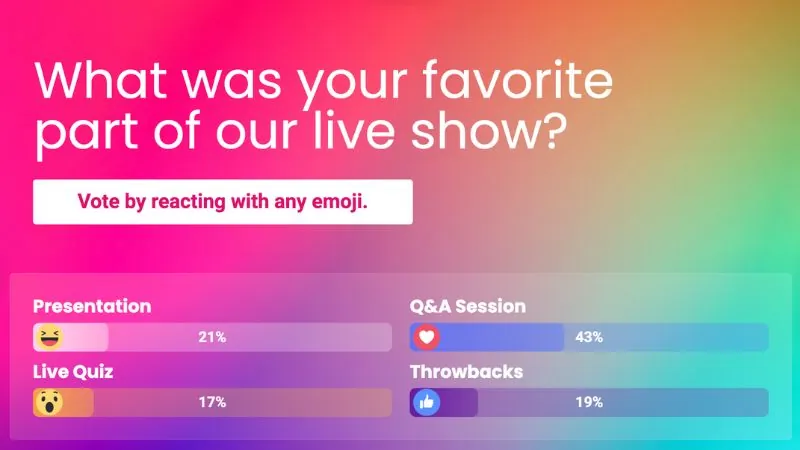 Open template
Four options, voted with Facebook reactions.
FB reactions poll 2
Open template
Four options, voted with Facebook reactions.
FB reactions poll 2
-
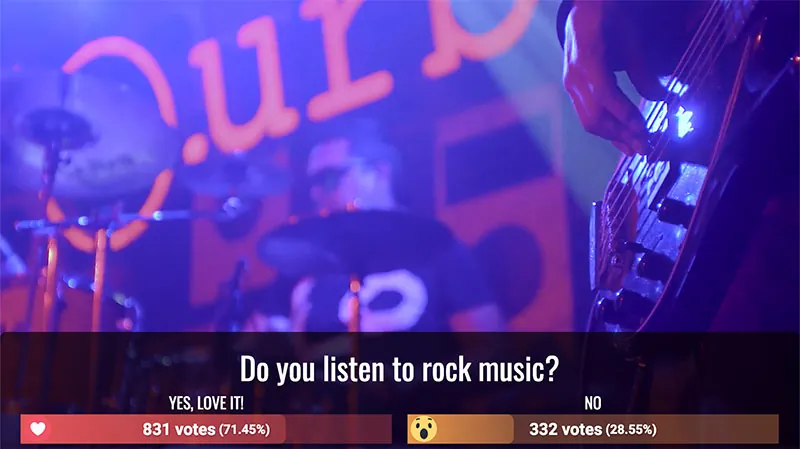 Open template
A Facebook reaction poll over a pre-recorded video.
FB reactions poll + pre-recorded video
Open template
A Facebook reaction poll over a pre-recorded video.
FB reactions poll + pre-recorded video
-
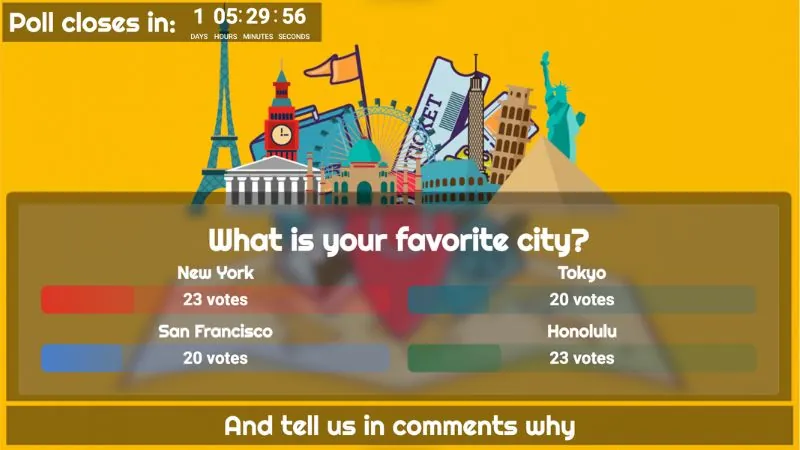 Open template
Four options and a countdown, voted in the comments.
Comments poll
Open template
Four options and a countdown, voted in the comments.
Comments poll
-
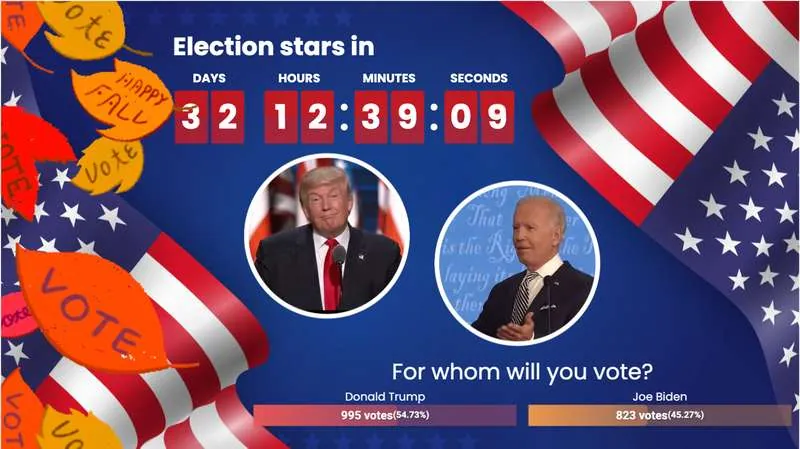 Open template
Two candidates with their pictures, and a countdown.
Election poll 1
Open template
Two candidates with their pictures, and a countdown.
Election poll 1
What people ask their viewers.
A question works in any live stream on YouTube, Facebook, Twitch or Instagram. Six things to ask, each with a page or a guide to start from.
-
Which product to launch
Put two or three products on screen as picture cards, and let the viewers pick the one you launch next.
See the poll templates -
An election or a news poll
Two candidates, their pictures, and a reaction or a comment as the vote.
Read the election poll guide -
What the host does next
Let the chat decide what happens in the show, and do it while they watch.
See The Try Guys' poll -
A vote after the service
Ask the congregation which time suits them, or which song to sing next Sunday.
See church live streaming -
A check during a class or a webinar
One question between two parts of the lesson, answered by everyone in the chat.
Read the YouTube poll guide -
A poll inside a 24/7 or pre-recorded stream
A question over a channel that runs on its own, with nothing on your computer to keep open.
See pre-recorded live streaming
Set up your first live poll.
Frequently asked questions.
How do viewers vote in a live poll?
They type one of your options as a comment in the live chat. LiveReacting reads the chat on YouTube, Facebook, Twitch and Instagram, and on a Facebook live stream viewers can vote with a reaction instead. There is nothing to download and no page to open.
Can a viewer vote twice, or change a vote?
No. The first comment that names an option is the one that counts, and everything that viewer types after it is ignored. Resetting the poll starts a new round, and then everyone votes again.
Can I ask more than one question in a stream?
Yes. Reset the poll and ask the next question, or build a scene for each question and switch between them while you are live. Reset each poll when its scene goes on air, because a poll counts the comments written since the stream started, or since you last reset it.
Can an option be a picture or a video?
Yes. In the cards format, each option is a card with a picture or a video clip above the word viewers type.
Does it count votes from every platform I stream to?
From YouTube, Facebook, Twitch and Instagram, yes: every vote goes into the same count. A platform added by stream key sends no comments back, so its viewers cannot vote.
Can I use it with OBS, vMix or StreamYard?
Yes. Add the link Plugin Mode gives you as a browser source, and the poll sits on a transparent background over the video your own software is sending. Plugin Mode is on the Small, Medium, Large and Enterprise plans, and the pricing page lists what each one includes.
Is the live poll on the free plan?
Yes. Polls are on every plan, the free one included. The free plan streams to one channel at a time, so a poll that counts votes from several channels at once needs a paid plan. The pricing page lists what each plan includes.
Can I put a poll over a pre-recorded video?
Yes. Two of the templates do exactly that: the poll runs over a video you uploaded, and our servers stream both.
Can I change the design?
Yes. Pick the format, give each option its own color, set the font, the background color or gradient, and the columns, and place the poll where you want it over the video.
Can you build a custom poll for me?
Yes. If the templates and the settings are not enough, our team builds a custom poll for an additional price. Ask through the Enterprise page.
How to add a poll to a live stream
- To add a poll to a live stream, sign up for LiveReacting and create a project from a poll template. Write your question and its options, pick the format, and connect the YouTube, Facebook, Twitch or Instagram channel you stream to. Start the stream, and viewers vote by typing an option as a comment in the live chat.
-
- Create a project from a poll template and write the question and its options.
- Pick the format and connect the channel you stream to.
- Start the stream, and viewers vote in the live chat.
-
 Written and reviewed by the LiveReacting Streaming Team. Powering live streams since 2016. See customer results.
Last updated: September 2026
Written and reviewed by the LiveReacting Streaming Team. Powering live streams since 2016. See customer results.
Last updated: September 2026
What you need to run a live poll
- One LiveReacting account You create the project and start the stream from your account. What each plan includes is on the pricing page. See pricing.
- A channel to stream to Sign in to your YouTube, Facebook, Twitch or Instagram channel from the project. A platform added by stream key shows the poll, but its viewers cannot vote.
- A question and its options Two to eight of them, in words your viewers can type.
Run your first live poll.
Open a poll template, write the question and its options, and go live. The bars move as your viewers vote in the live chat.
- No credit card
- 4.8 from 633 reviews
Want the numbers first? See pricing