What each one is built for
LiveReacting
Pre-recorded and 24/7 live streams: upload a video and go live, or build a playlist for non-stop streaming. The same account also does live shows from a browser studio with cameras, guests and a shared screen, multistreaming to several platforms at once, trivia, polls and giveaways with a chat overlay, YouTube ad breaks, ready-made templates, and control by an AI agent or your own code.
OBS Studio
Free, open-source software for recording and live streaming from your own computer, on Windows, macOS and Linux: scenes built from screens, windows, games, webcams, capture cards and video files, with plugins and scripts.
LiveReacting vs OBS Studio, side by side
How we compared
LiveReacting figures come from our pricing page. OBS Studio figures come from OBS's own website, Knowledge Base, forum plugin pages and release notes, and from YouTube's list of verified encoders; the number beside each OBS Studio cell names its source below. "Not documented" means we found no public OBS page that says so.
- OBS Studio source repository on GitHub, README, read on September 25, 2026
- OBS Studio homepage, read on September 25, 2026
- OBS Studio download page, Windows, macOS and Linux, read on September 25, 2026
- OBS Knowledge Base, System Requirements, read on September 25, 2026
- OBS Knowledge Base, Sources Guide, read on September 25, 2026
- OBS Knowledge Base, WHIP Streaming Guide, read on September 25, 2026
- OBS Knowledge Base, Standard Recording Output Guide, read on September 25, 2026
- OBS Knowledge Base, OBS Studio Overview Guide, read on September 25, 2026
- OBS Knowledge Base, Media Sources (Media Source and VLC Video), read on September 25, 2026
- OBS forum, Advanced Scene Switcher, a third-party plugin, read on September 25, 2026
- OBS Knowledge Base, Quick Start Guide, read on September 25, 2026
- OBS Knowledge Base, Stream Connection Troubleshooting, read on September 25, 2026
- OBS Knowledge Base, How do I add my chat to my stream?, read on September 25, 2026
- OBS forum, Multiple RTMP outputs plugin, a third-party plugin, read on September 25, 2026
- OBS Studio 30.0 to 32.2 release notes on GitHub, read on September 25, 2026
- OBS Studio 27.1 release notes on GitHub, YouTube integration, read on September 25, 2026
- OBS Knowledge Base, SRT Protocol Streaming Guide, read on September 25, 2026
- OBS Studio 26.1 release notes on GitHub, HLS for YouTube, read on September 25, 2026
- YouTube Help, YouTube Live verified encoders, read on September 25, 2026
- OBS Knowledge Base, Remote Control Guide, read on September 25, 2026
| LiveReacting | OBS Studio | |
|---|---|---|
| Price | ||
| New-customer offer | $21.99/mo for the first 5 months, then $39.99. Or $287.93 for the first year billed yearly ($23.99/mo), then $396 a year. Code KICKSTART2026. The offer ends Oct 31, 2026. | None: OBS Studio is free [1] |
| Price | Free plan: 3 streams a month, 720p, 30 minutes each, LiveReacting watermark. Paid plans from $19.99/mo | Free: open source software under the GNU GPL v2 or later [1] [2] |
| What runs the stream | Our servers: you set it up in a browser, then your computer can be off for a pre-recorded or 24/7 stream | Your computer, with OBS installed: Windows 10 or 11, macOS 13 or newer, or Linux [3] [4] |
| A live show from your computer or browser | ||
| Screen, windows, games and cameras | Cameras and a shared screen, from the browser; screen sharing on paid plans | Yes: screens, windows, games (Game Capture on Windows), webcams and capture cards, with audio [5] |
| Guests on screen | Yes, on every plan: guests join from a link in the browser, with nothing to install | Through WHIP: its WHIP guide lists co-hosts from a web browser as one use, with a service that supports it. None of the sources OBS includes is a guest [6] [5] |
| Record the show | No, LiveReacting does not record a stream | Yes, to a file on your computer, alone or while streaming [7] |
| Encoder, bitrate and resolution | Set by the plan: 720p on Small, 1080p from Medium and on the 24/7 plan | Yes, you set the encoder, bitrate, resolution and frame rate of the stream and the recording yourself [8] |
| A pre-recorded or 24/7 stream | ||
| Stream a video file | Yes, on every plan: upload a video and go live. Up to 1 hour on Small, 3 hours on Medium, 8 hours on Large | Yes, from your computer: a Media Source plays a video file in a scene, looped if you tick Loop [9] |
| Playlists | Yes, on every plan, the Free plan included: set the order, or shuffle it into a new order each time it loops | Yes, with a VLC Video source: a playlist of files, looped or shuffled. It needs VLC Media Player installed; the built-in Media Source plays one file [9] |
| Start on a date and time | Yes, a date and time on every paid plan. Advanced Scheduling (several dates, or a repeat every set number of minutes, hours or days) on the 24/7 plan and from Medium | You click Start Streaming. A start on a date and time comes through a third-party plugin listed on its forum, Advanced Scene Switcher [10] [11] |
| Where the video is encoded | On our servers, free: your computer does no encoding | On your computer, while it streams: the load on it depends on the encoder, resolution, frame rate and scenes [4] |
| Change the stream while it is on air | Yes, from any browser, without stopping the stream | Yes, on the computer running it: Studio Mode lets you change a scene out of view, then switch to it [8] |
| Limit on stream length | No limit set by the service on the 24/7 plan; platform limits apply | OBS states none: the stream lasts while the computer running it stays on and online, and its guide says a network problem there can disconnect it [12] |
| Templates to start from | Yes, 100+, of them 16 for 24/7 streams | Not documented on OBS Studio's pages we checked [11] |
| What viewers see | ||
| Trivia, polls and giveaways in the live chat | Yes, all three, on every plan. Up to 150 viewers play trivia or a poll at once on the 24/7 plan | Not documented on OBS Studio's pages we checked [5] |
| Live chat shown on the stream | Yes, a chat overlay with comments from every platform you connect with a login | Not built in, its FAQ says: a chat overlay from a third-party provider, added as a Browser Source [13] |
| Where it goes | ||
| Platforms | YouTube, Facebook, Twitch and Instagram; on every paid plan, also any platform that accepts RTMP, such as Kick, TikTok or LinkedIn, and several at once | The services listed in its Stream settings, or a custom server [8] |
| Several platforms at once | Yes, on every paid plan, with nothing to install | One service in its Stream settings. Several platforms at once through a third-party plugin listed on its forum, Multiple RTMP outputs, for Windows and Linux [14] [15] |
| Connect your YouTube channel by signing in | Yes | Yes, connect your YouTube account without a stream key, set each stream's title, description and privacy, and schedule the YouTube broadcast in OBS; the stream starts when you click Start Streaming [16] |
| Choose where YouTube ad breaks fall | Yes, Ad Slots Manager, on the 24/7 plan and from Medium | Not documented on OBS Studio's pages we checked [16] |
| SRT and HLS outputs, SCTE-35 ad markers | By request, on a custom plan | SRT and WHIP streaming, each with a guide in its Knowledge Base, and HLS to YouTube since OBS 26.1; SCTE-35 markers not documented [17] [18] |
| YouTube Live verified encoder | Not on the list. Streams through YouTube's official API; the app passed YouTube's API compliance audit and Google's verification | Yes, listed as Open Broadcaster Software [19] |
| Uploads and automation | ||
| Import videos from a YouTube channel or playlist | Yes: paste a channel, playlist or video link, pick the videos, and they are imported to your media library. On every paid plan | Not documented on OBS Studio's pages we checked [9] |
| API to control streams | Yes, a REST API on every paid plan, with no computer of yours running | Yes, a WebSocket API built in since OBS 28, to control scenes and sources from other tools [20] |
| AI agents over MCP | Yes, on every paid plan: Claude Code, Codex, Cursor and other MCP clients | Not documented on OBS Studio's pages we checked [20] |
On the Free plan you can build the whole stream and go live for a short test before you pay for the 24/7 plan.
Where is each one ahead?
LiveReacting is ahead on
- The same few steps as OBS to start, in the browser with nothing to install: upload a video, connect your channel, go live. Everything below is there when you need it, in the same stream.
- For a pre-recorded or 24/7 stream, your computer can be off. The stream runs on our servers, so a restart, an update or a dropped home connection does not reach your viewers.
- Playlists on every plan, the Free plan included, with loop and shuffle and no other software to install.
- A start on the dates you set, on every paid plan, and several dates or a repeat with Advanced Scheduling on the 24/7 plan and from Medium. OBS needs a third-party plugin for a timed start.
- Live Studio in the browser: guests join from a link with nothing to install, beside your videos, in the same stream.
- Trivia, polls and giveaways viewers play in the live chat, and a chat overlay, built in.
- Several platforms at once on every paid plan, with no plugin.
- Ad breaks placed where you choose, and videos imported from a YouTube link.
- Streams run by an AI agent such as Claude Code, Codex or Cursor over MCP, or by your own code through the API, on every paid plan.
Choose LiveReacting if you want pre-recorded, 24/7 and live streams with a straightforward setup: no encoder, bitrate or frame rate to set, no computer left on for a pre-recorded or 24/7 stream, and guests, trivia and polls when you need them.
OBS Studio is ahead on
- Free and open source, under the GNU GPL, on Windows, macOS and Linux. LiveReacting's paid plans start at $19.99 a month.
- It captures what is on your computer: screens, windows, games, webcams and capture cards, with audio.
- It records to a file on your computer, alone or while streaming. LiveReacting does not record.
- Full control of the encoder, bitrate, resolution and frame rate, for users who want to learn and tune them, with plugins and Lua or Python scripts.
- SRT and WHIP streaming, each with a guide, and HLS to YouTube. On LiveReacting, SRT and HLS outputs come by request, on a custom plan.
- Listed as a YouTube Live verified encoder, as Open Broadcaster Software. LiveReacting is not on that list.
Choose OBS Studio if you are comfortable with technical settings and want to take the time to learn them: it is free, it streams and records your own screen, game or camera, and you set the encoder, bitrate and frame rate yourself.
How do you start a pre-recorded stream on each?
LiveReacting
- Create a free account and open a 24/7 template, or start from scratch.
- Upload your videos, or on any paid plan paste a link to a YouTube channel, playlist or video, or to a Google Drive or Dropbox file.
- Put them in a playlist: set the order, shuffle it or loop one file.
- Connect your YouTube channel by signing in, or paste a stream key.
- Click Go Live, or set the dates and times it should run.
How To Stream 24/7 on YouTube Using Pre Recorded Videos without OBS, our tutorial.
OBS Studio
- Download OBS Studio and install it on a computer running Windows, macOS or Linux.
- Run the Auto-Configuration Wizard, which sets OBS up for that computer's hardware and network.
- In Settings, Stream, pick the service and enter your stream key, or connect your YouTube account.
- In the Sources dock, add a Media Source with your video file and tick Loop, or a VLC Video source for a playlist, with VLC installed.
- Click Start Streaming. The stream goes out from that computer until you stop it.
From OBS Studio's download page, Quick Start Guide, Overview Guide and Media Sources guide, read on September 25, 2026.
What does LiveReacting add to your live streams?
One video is enough to go live. Each feature below joins the same stream when you want it. OBS Studio documents none of them as its own, apart from a remote-control API, which the last card compares.
-
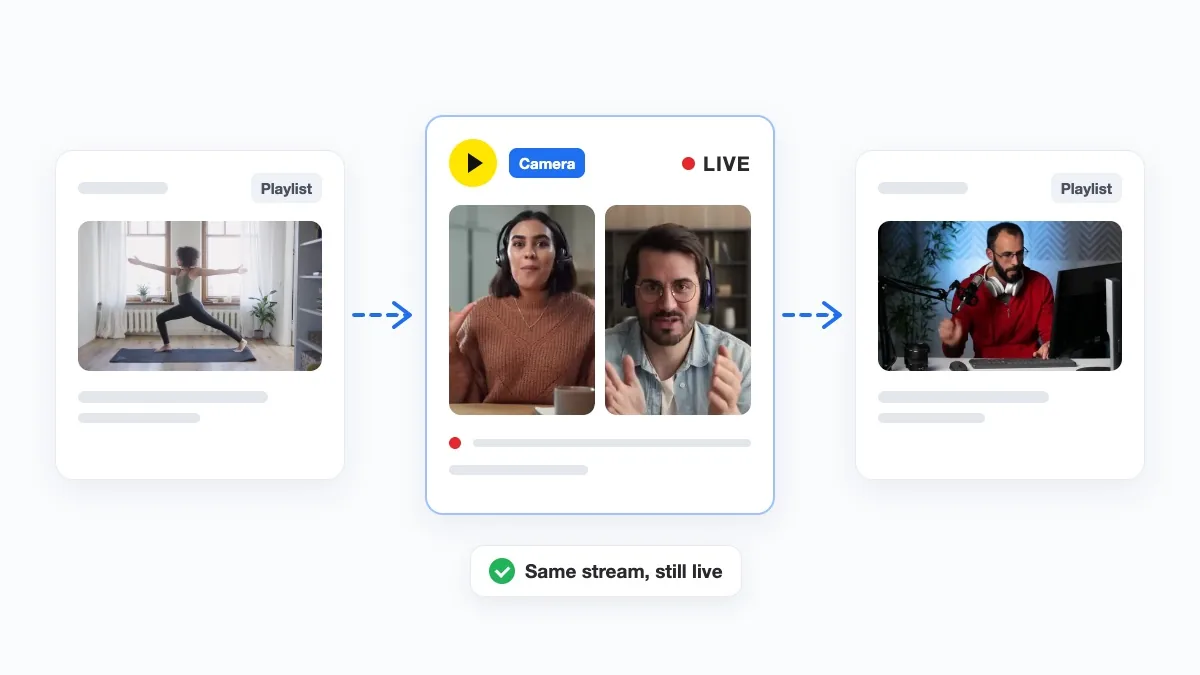
Guests from a link, in the browser
In Live Studio a guest opens your link and joins with nothing to install. Put them beside your videos, cut to them in the middle of a playlist, and the stream stays on air. See Live Studio.
-
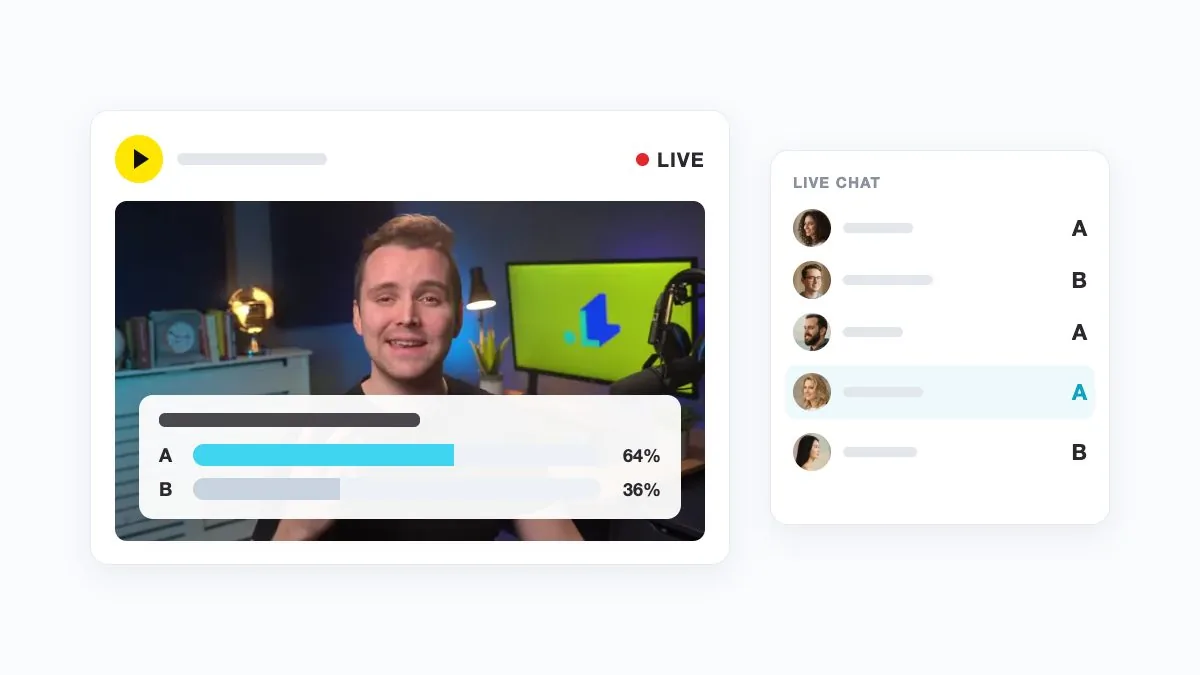
Trivia, polls and giveaways
OBS shows alerts and a chat box from third-party providers as browser sources. Here trivia, polls and giveaways are part of the stream: viewers play by typing in the live chat, and the result appears on screen. See interactive live streaming and why that matters on YouTube.
-
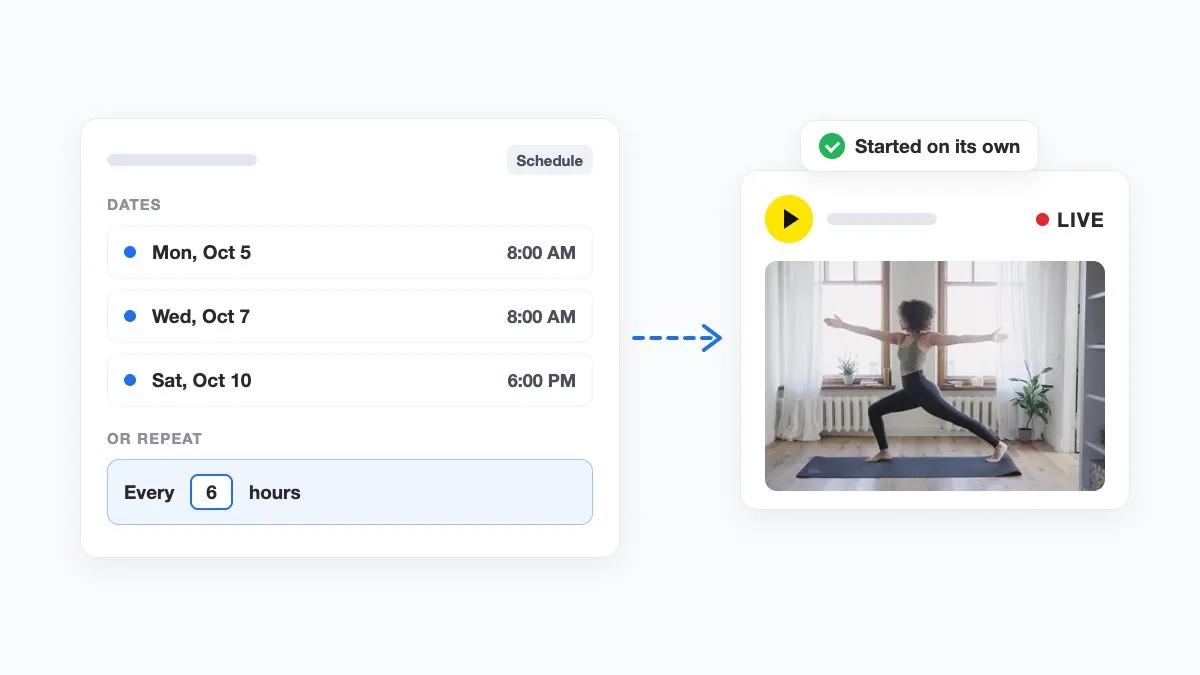
Several dates, or any gap you choose
OBS goes live when you click Start Streaming, or on a timer from a third-party plugin. Here you set several dates at once, or a repeat every set number of minutes, hours or days, on the 24/7 plan and from Medium. Help Center guide.
-
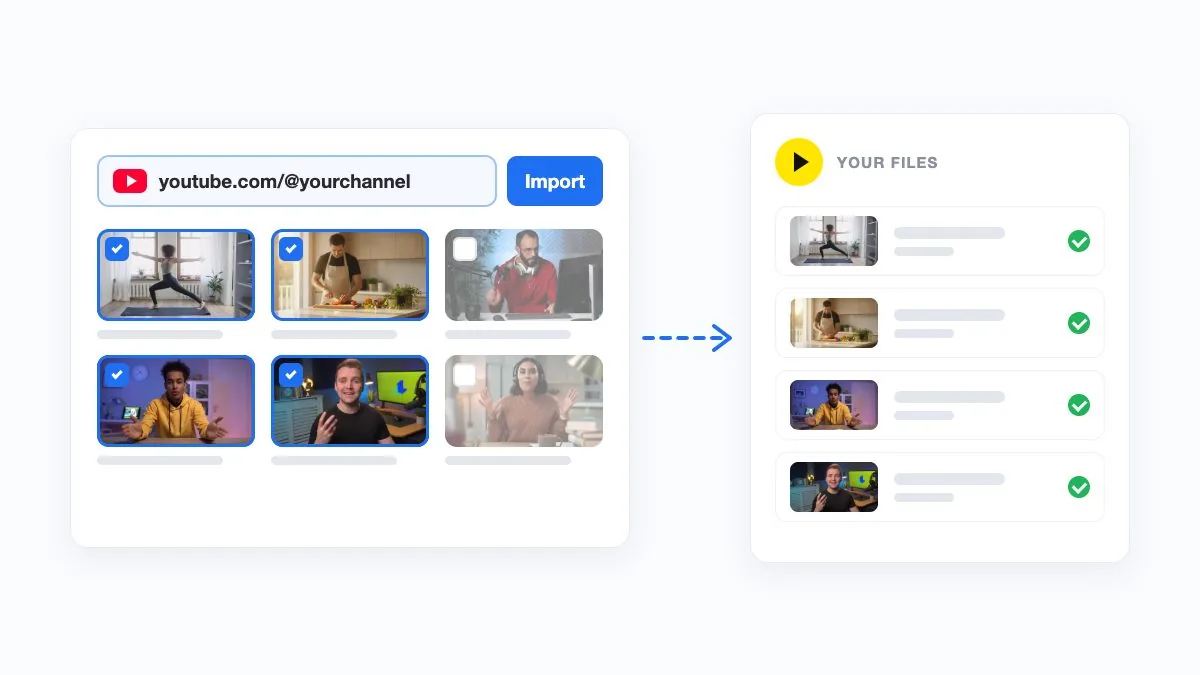
Bring in your YouTube channel
Going live with videos you already published? Paste your YouTube channel, a playlist or one video link, pick the videos, and they land in your media library, with nothing to download first. On every paid plan. Help Center guide.
-
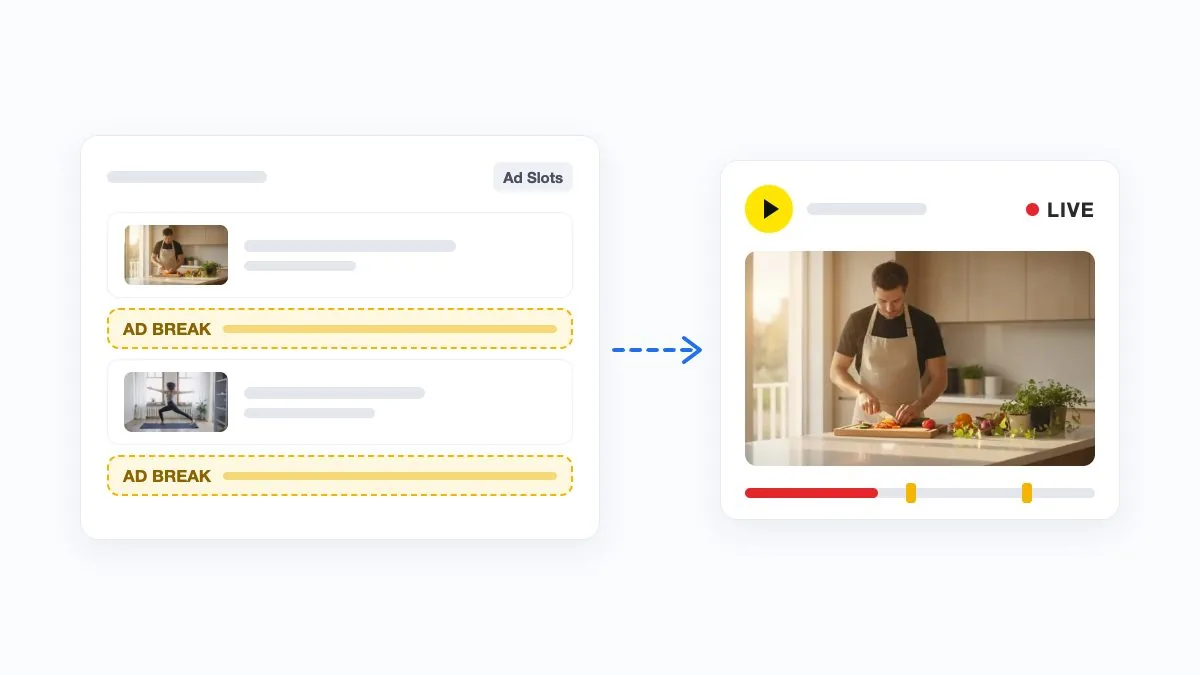
Ad breaks where you choose
Ad Slots Manager marks where in your playlist YouTube may show an ad, so each break falls between two videos. It needs monetization on your channel. On the 24/7 plan and from Medium. Help Center guide.
-
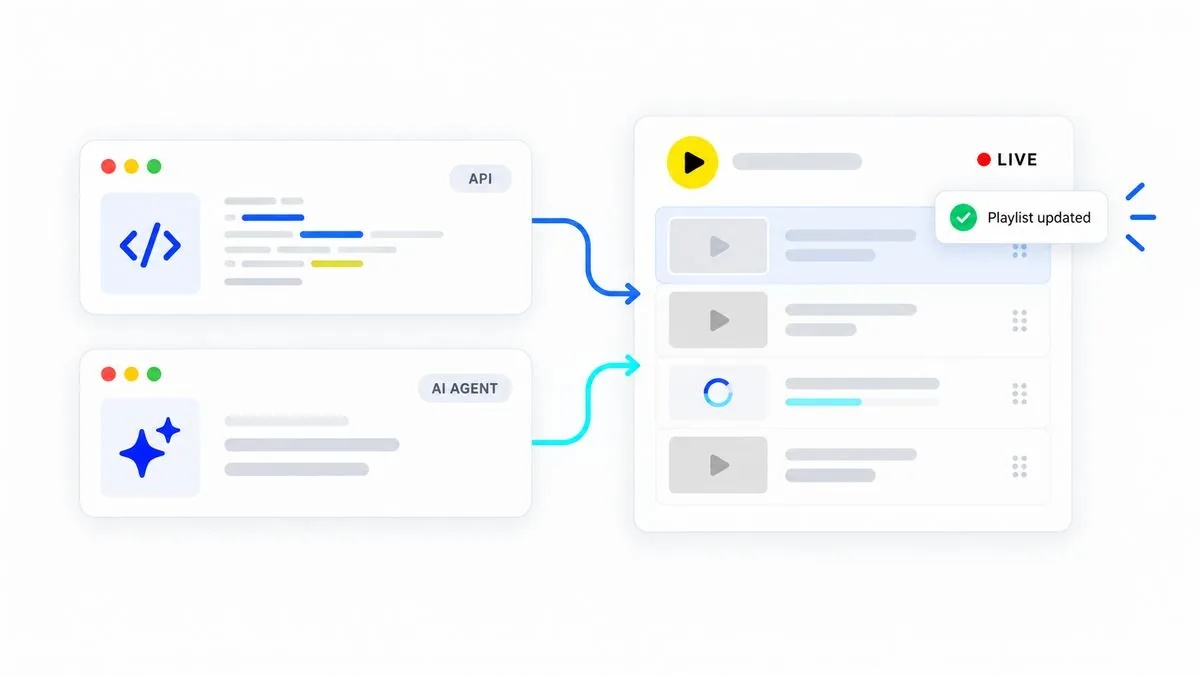
Run it from an AI agent, or your own code
OBS has a WebSocket API on the computer that runs it. Here Claude Code, Codex or Cursor connects over MCP and builds the playlist, schedules the stream or swaps a video while it is on air; your own code does the same through the REST API. On every paid plan. See the MCP server and the API.
Can you start from a ready-made 24/7 stream?
Yes. OBS starts you on a blank scene; a template starts you on a finished 24/7 stream, with the playlist, the artwork and the layout in place. Swap in your own files and go live.
-
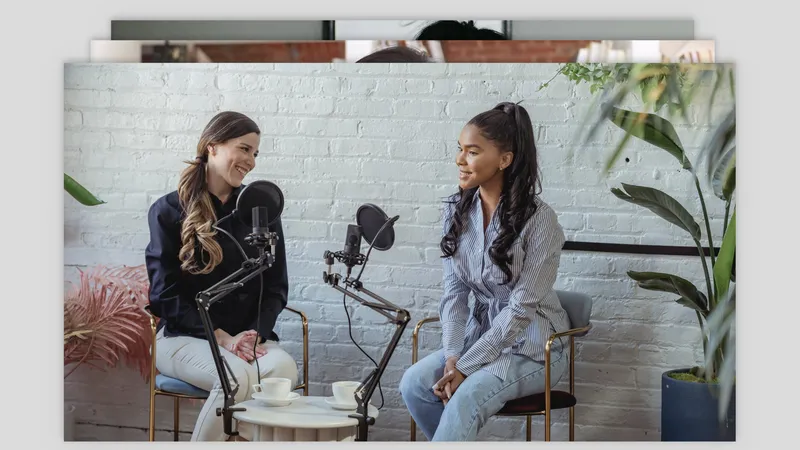 Playlist of pre-recorded videos
Playlist of video files that play one after another in sequence for continuous streaming.
Playlist of pre-recorded videos
Playlist of video files that play one after another in sequence for continuous streaming.
-
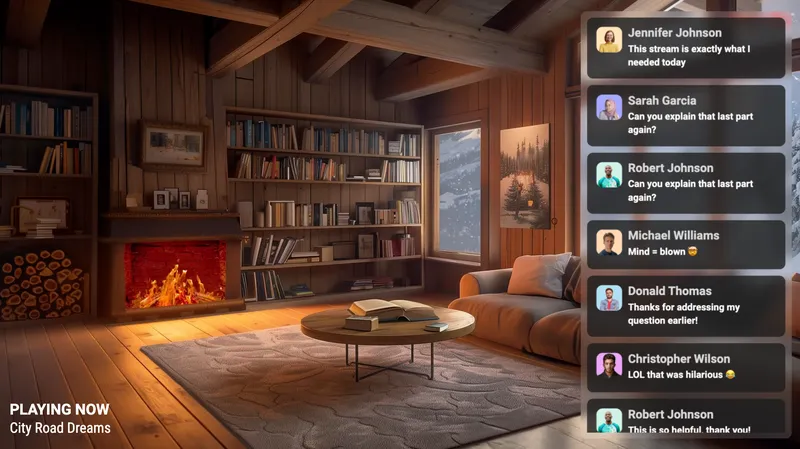 24/7 LoFi + chat overlay
24/7 lofi music live stream with audio playlist, animated background, and live chat overlay display.
24/7 LoFi + chat overlay
24/7 lofi music live stream with audio playlist, animated background, and live chat overlay display.
-
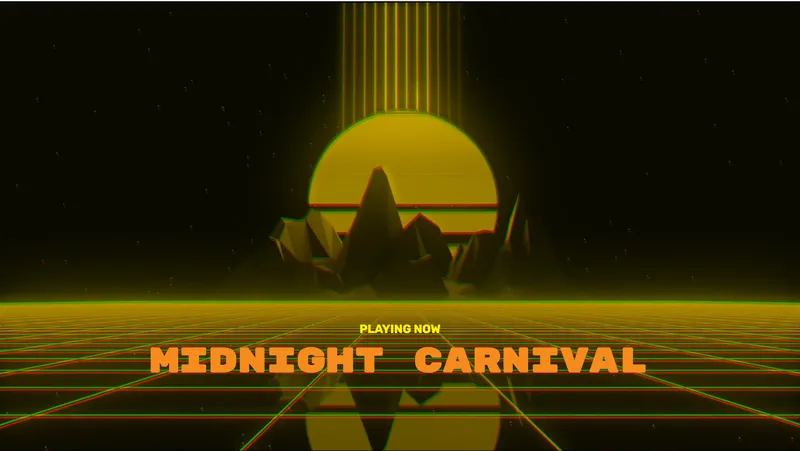 24/7 synthwave
 music radio channel with retro audio playlist and 80s-style animated visualizer.
24/7 synthwave
24/7 synthwave music radio channel with retro audio playlist and 80s-style animated visualizer.
-
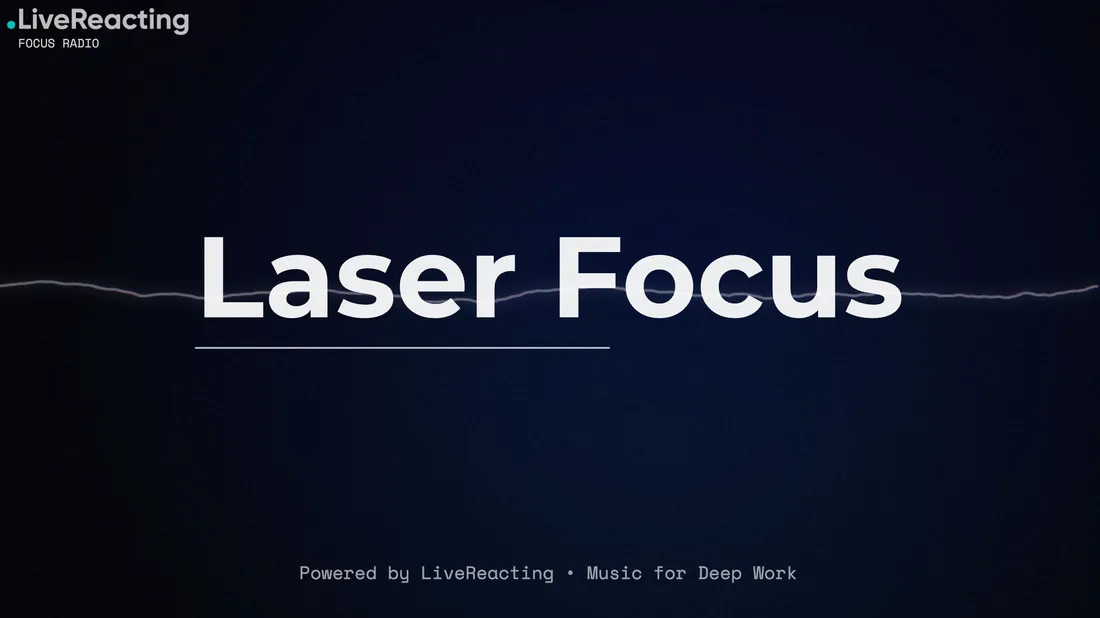 24/7 work radio
24/7 focus music live stream with productivity audio playlist and minimalist background for studying or working.
24/7 work radio
24/7 focus music live stream with productivity audio playlist and minimalist background for studying or working.
-
 24/7 relaxing spa
 ambience live stream with calming audio playlist and meditation background visuals.
24/7 relaxing spa
24/7 relaxing spa ambience live stream with calming audio playlist and meditation background visuals.
-
 24/7 fitness live stream
24/7 workout live stream with fitness video playlist or pre-recorded exercise videos playing continuously.
24/7 fitness live stream
24/7 workout live stream with fitness video playlist or pre-recorded exercise videos playing continuously.
How much does it cost on each?
OBS Studio is free and open source, under the GNU GPL. What it needs is a computer that runs it, on Windows, macOS or Linux, with the processor or graphics card to encode the stream, on and online for as long as the stream lasts (OBS's download page and Knowledge Base, September 25, 2026).
LiveReacting's Free plan streams up to 30 minutes at a time in 720p, with a watermark. A pre-recorded stream of up to 1 hour costs $19.99 a month on Small, and 3 hours cost $39.99 on Medium. A 24/7 stream with no limit set by the service costs $39.99/mo, or $33/mo billed yearly. Our servers do the streaming, so no computer of yours stays on.
New customers get 45% off the first 5 months month to month ($21.99 a month, then $39.99), or 40% off 12 months at $39.99 billed yearly ($287.93 for the first year, then $396 a year), on the 24/7 plan at 1080p 30 FPS with the code KICKSTART2026 until Oct 31, 2026.
How do you move a stream from OBS Studio to LiveReacting?
- Bring your videos: upload them from your computer, or on any paid plan paste a link to a YouTube channel, playlist or video, or to a Google Drive or Dropbox file and LiveReacting fetches the file.
- Put them in a playlist, or add your camera and guests in Live Studio.
- Connect your YouTube channel or another platform and go live, or set the dates and times. A pre-recorded or 24/7 stream goes on with your computer off.
If the platform does not accept a file as it is, LiveReacting converts it for free. Nothing is imported from OBS Studio directly.
LiveReacting vs OBS Studio: questions
Is LiveReacting a good alternative to OBS Studio?
Yes, for pre-recorded, 24/7 and interactive live streams, and live shows with guests from a browser. LiveReacting streams from its servers, so your computer can be off during a pre-recorded or 24/7 stream, from $19.99 a month for a pre-recorded stream or $39.99 a month for 24/7 with no limit set by the service. OBS Studio is free software that records and streams from your own computer, as of September 25, 2026.
Is LiveReacting harder to set up than OBS Studio?
No. On LiveReacting, you upload your videos, put them in a playlist, connect YouTube or another platform, and go live, in the browser. OBS's own guides have you install it, run its setup wizard, add a Media Source with your video to a scene and click Start Streaming. On OBS, the quality of the stream depends on the encoder, bitrate, resolution and frame rate set for your computer and connection; its wizard suggests them and you adjust them. On LiveReacting, the plan sets them. Scheduling, trivia and guests are there when you want them, not steps you take first.
Is OBS Studio free?
Yes. OBS Studio is free and open source, under the GNU GPL v2 or later, and runs on Windows, macOS and Linux, as of September 25, 2026. It streams from the computer it is installed on. LiveReacting's Free plan streams up to 30 minutes at a time in 720p with a watermark, and paid plans start at $19.99 a month. On the 24/7 plan, new customers pay $21.99 a month for the first 5 months on LiveReacting, then $39.99. The offer ends Oct 31, 2026.
Do I need to keep my computer on?
With OBS Studio, yes: it streams from your computer over your own internet connection, and its guide says a network problem there can disconnect the stream. With LiveReacting, no: our servers do the streaming, so you can close the browser and turn the computer off, on the dates you set or 24/7.
Can OBS Studio run a 24/7 stream?
Yes, for as long as the computer running it stays on and online. A VLC Video source plays a playlist on a loop, with VLC Media Player installed. OBS starts the stream when you click Start Streaming; a start on a date needs a third-party plugin. LiveReacting runs a 24/7 playlist on its servers with no limit set by the service, for $39.99/mo, or $33/mo billed yearly.
Can I stream to several platforms at once?
On LiveReacting, yes, on every paid plan, with nothing to install. OBS Studio streams to the one service in its Stream settings; several platforms at once need a third-party plugin, such as Multiple RTMP outputs, listed on its forum for Windows and Linux, as of September 25, 2026.
Can a stream have polls or trivia?
On LiveReacting, yes: trivia, polls and giveaways run in a live, pre-recorded or 24/7 stream, and viewers take part by typing in the live chat. OBS Studio does not document them as its own; its guides add alerts and a chat box from third-party providers as a browser source, as of September 25, 2026.
Can I use OBS Studio and LiveReacting together?
Yes, two ways. Keep streaming from OBS and add LiveReacting's trivia, polls or a giveaway to your scene as a browser source with Plugin Mode, on the Small, Medium, Large and Enterprise plans. Or start the OBS virtual camera and pick it as a camera in Live Studio, beside your videos and guests.
Will YouTube treat a 24/7 stream on LiveReacting or OBS Studio as repetitive content?
With either tool, the risky case is one short video looping with nothing else on screen. A playlist shuffled into a new order each time it loops, a chat overlay with viewers' comments, and trivia or polls in the live chat make each hour different, and LiveReacting has all of these, the 24/7 plan included. Our guide to looping a video on YouTube Live explains the policy.
Is LiveReacting a YouTube Live verified encoder?
It is not on YouTube's list of verified encoders, as of September 25, 2026. LiveReacting streams to YouTube through YouTube's official API, and the app passed YouTube's API Services compliance audit and Google's verification. Sign in with your YouTube channel and LiveReacting creates the live stream there for you.